EXLANTIX ET and ES: apps and controls your way

Models: EXLANTIX ET · ES

The EXLANTIX screen should suit your habits. JCarTools adds convenient app launches and access to useful commands. Keep music and navigation on the centre display and choose how you want to control them.
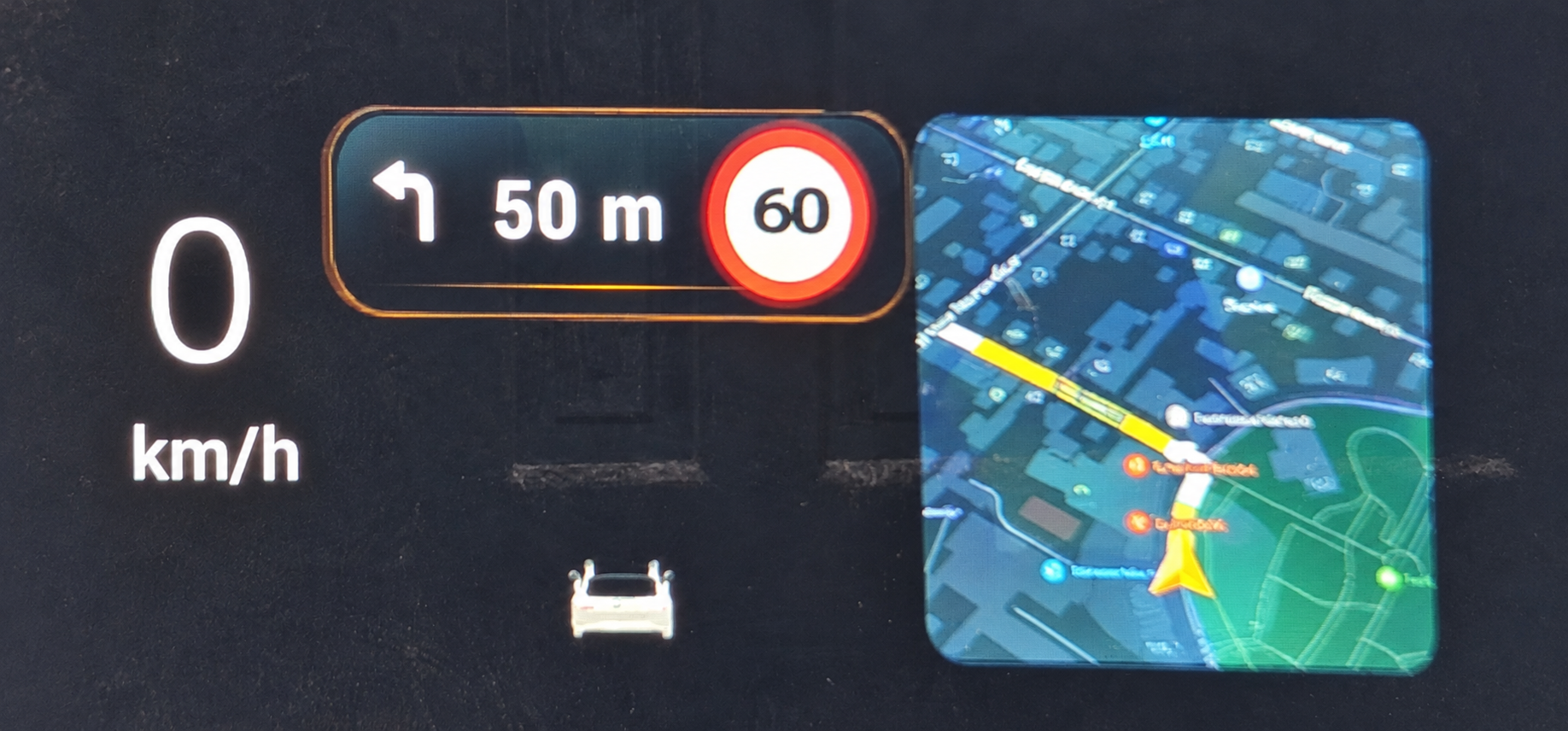
JCarTools navigation and turn guidance on the EXLANTIX head-up display

With JCarTools You Can Also

Need the glove box, your music or a familiar vehicle action? Give it a clear shortcut instead of travelling through menus. EXLANTIX offers many functions; JCarTools helps shorten the path to the ones you actually use.
JCarTools feature example
Store

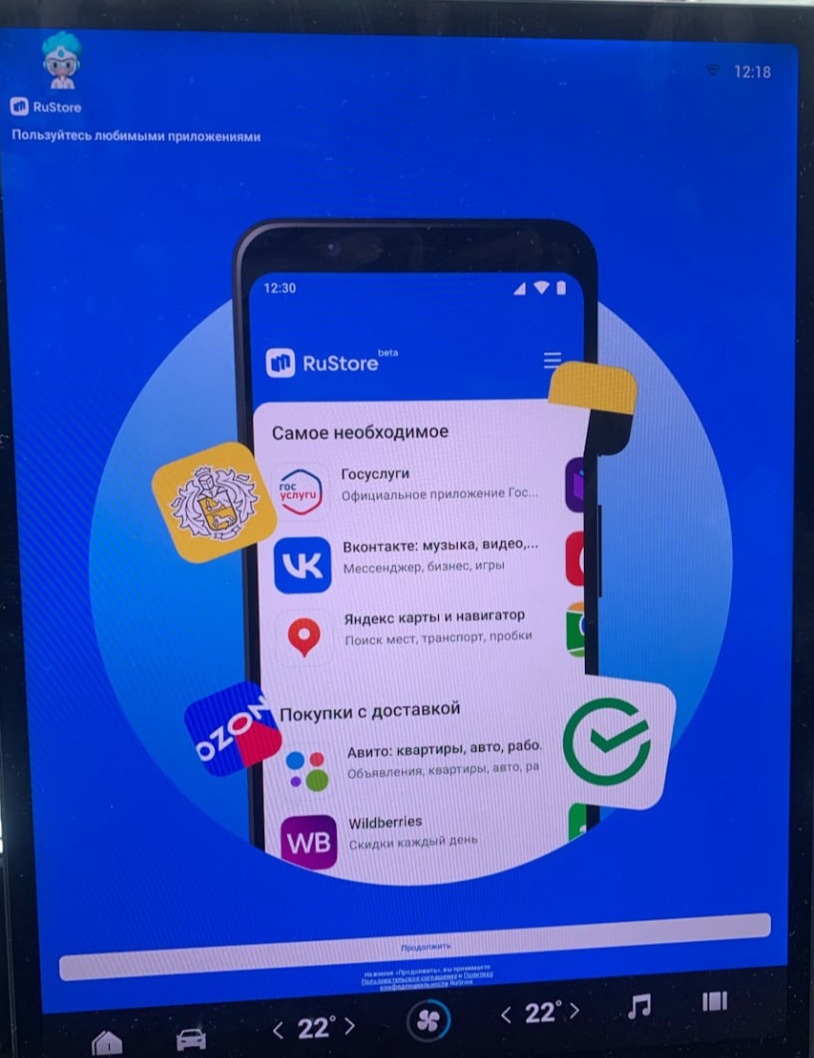
Build a centre-screen app selection, from everyday music to a map for an unfamiliar route.

JCarTools feature example
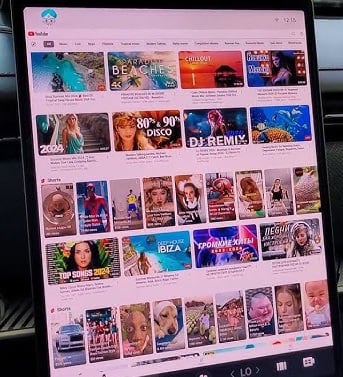
Video

Make a break more enjoyable with a favourite video service on the EXLANTIX screen while parked.

JCarTools feature example
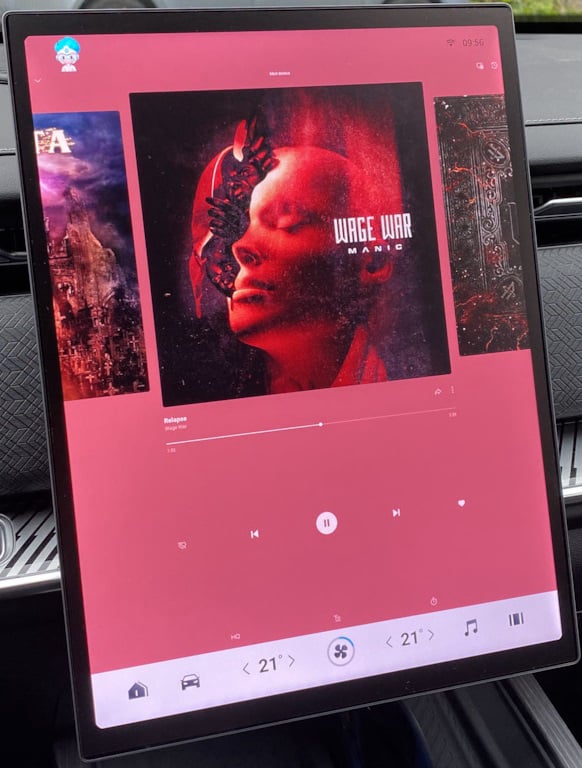
Music

The ET or ES display gives you room to browse an album, playlist or familiar music service.

JCarTools feature example
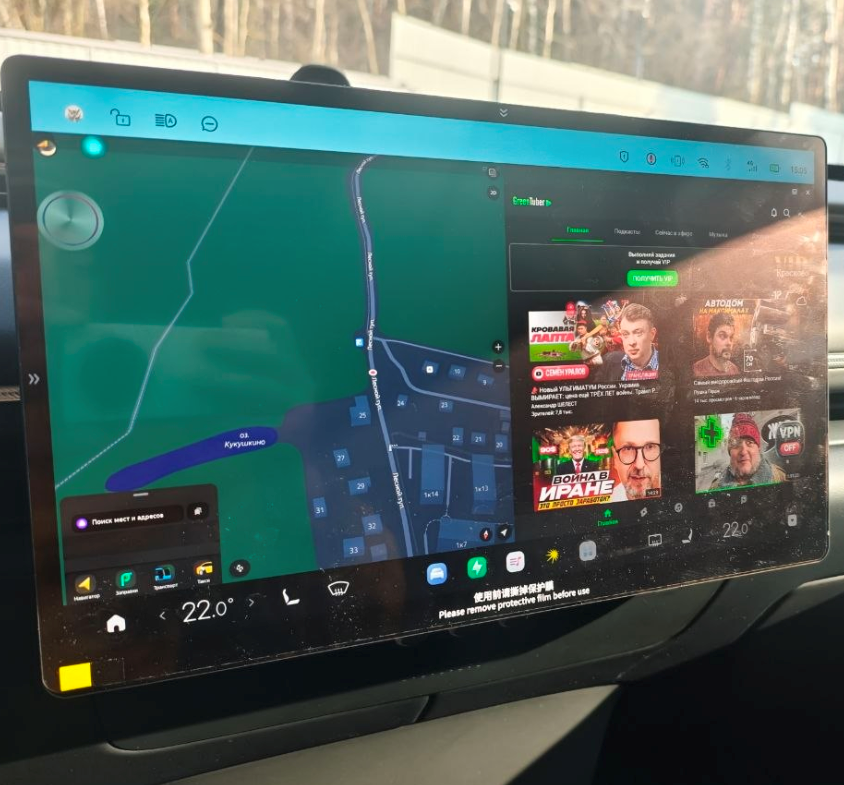
Navigation on the centre screen

Navigation apps run on the EXLANTIX centre screen: choose a map you find comfortable to use.

JCarTools feature example
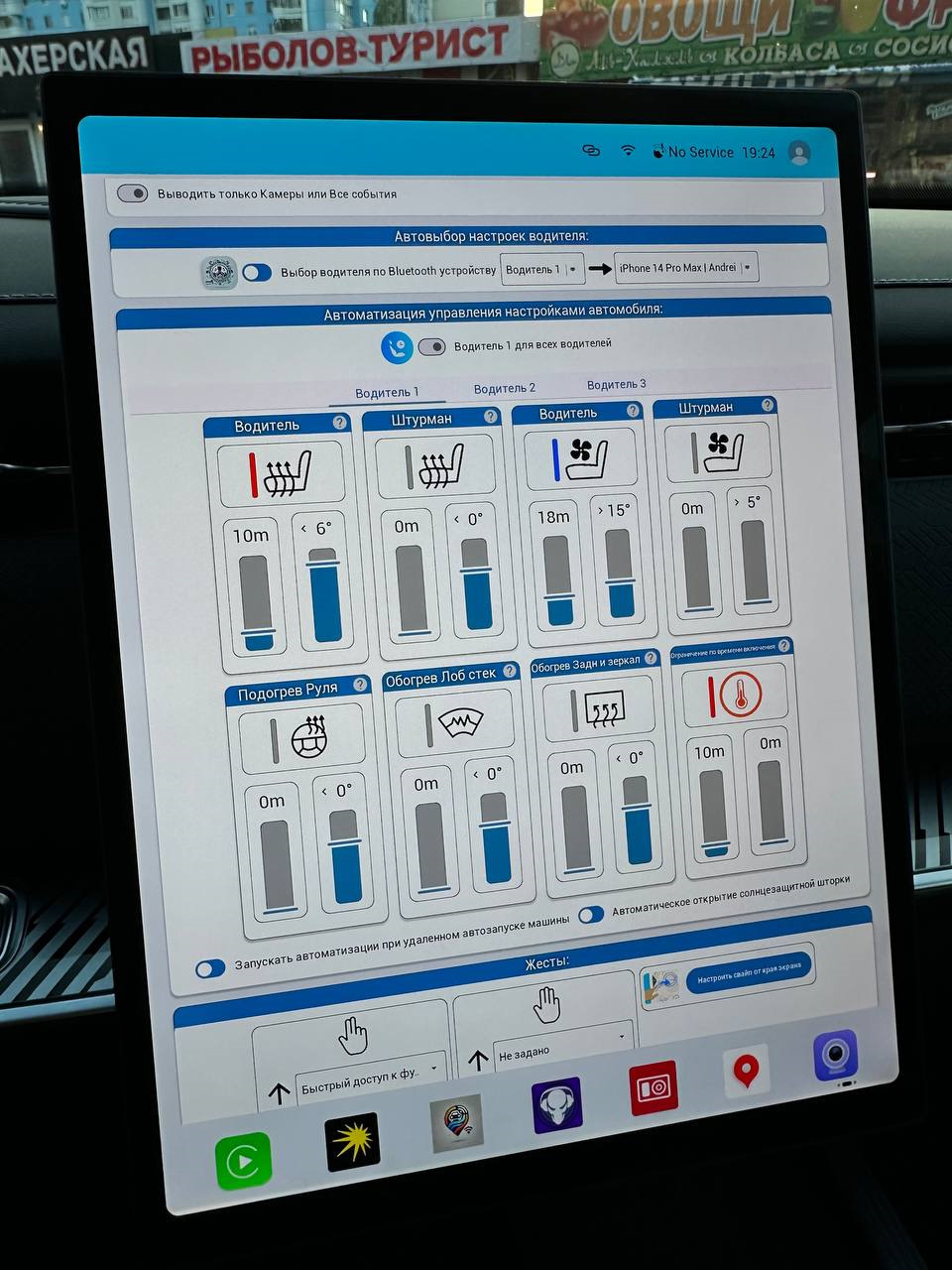
Automation

Shortcuts to available EXLANTIX functions bring the glove box, locks and other frequent actions closer.

Split screen mode on Android
Split Screen Mode

Use the ET or ES centre display for two tasks, such as a map and a music app.

Frequently Asked Questions

JCarTools feature example

Warranty

No interference with the car's system. Uses only built-in OS functions.
JCarTools feature example

Difficulty

Very easy procedure. You need a USB TYPE-A - TYPE-A cable and a laptop with a browser or OTG adapter for phone.

JCarTools feature example

Safety

Installing apps does not harm your vehicle.
JCarTools feature example

After Installation

Post-installation FAQs

Start Installation

The process is very simple! You will need a laptop with Chrome browser, USB TYPE-A <-> TYPE-A cable, and a USB flash drive.

Contacts

Contacts
Telegram channel: