 JCarTools
USB GPS guide for head units and navigation
How to get stable car GPS with an external USB receiver and JCarTools
If the built-in location jumps, needs too long to find satellites, or loses position in the city, a properly configured USB GPS receiver can give your navigation app a cleaner track.
USB GPS receiver setup in u-center
Before connecting the receiver to the car, configure it on a computer. Open u-center, select the receiver COM port in Receiver - Connection - COM*, then set Receiver - Baudrate - 115200. After that open View - Configuration View and go through the sections in this order.
ITFM: interference monitoring
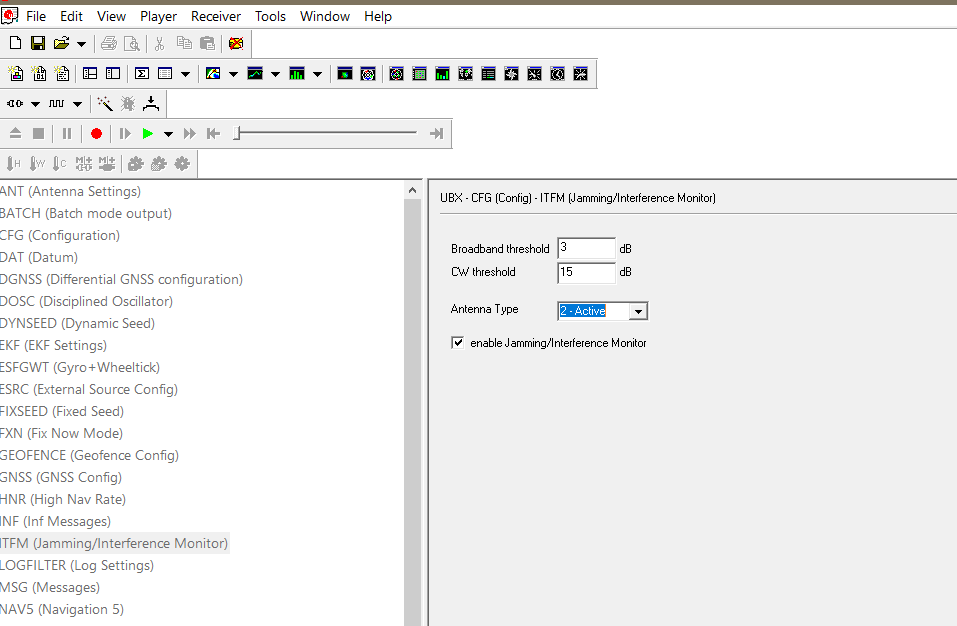
Open ITFM / Interference Detection. Enable Jamming / Interference Monitor. Set antenna type to active. After changing the setting, press Send at the bottom of the window.
NAV5: automotive dynamics
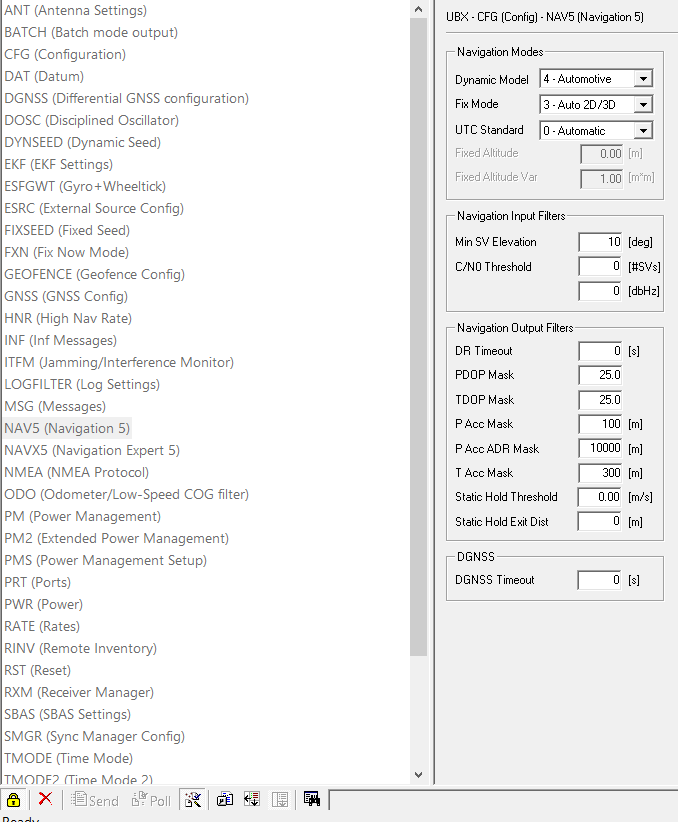
Open NAV5. In Dynamic Model, choose Automotive. This mode is optimized for vehicles with quick speed and direction changes. Set Minimum Elevation to 10-15 degrees to ignore low satellites with weak signal. For PDOP Mask and TDOP Mask, use 25. Press Send.
NAVX5: navigation input filters
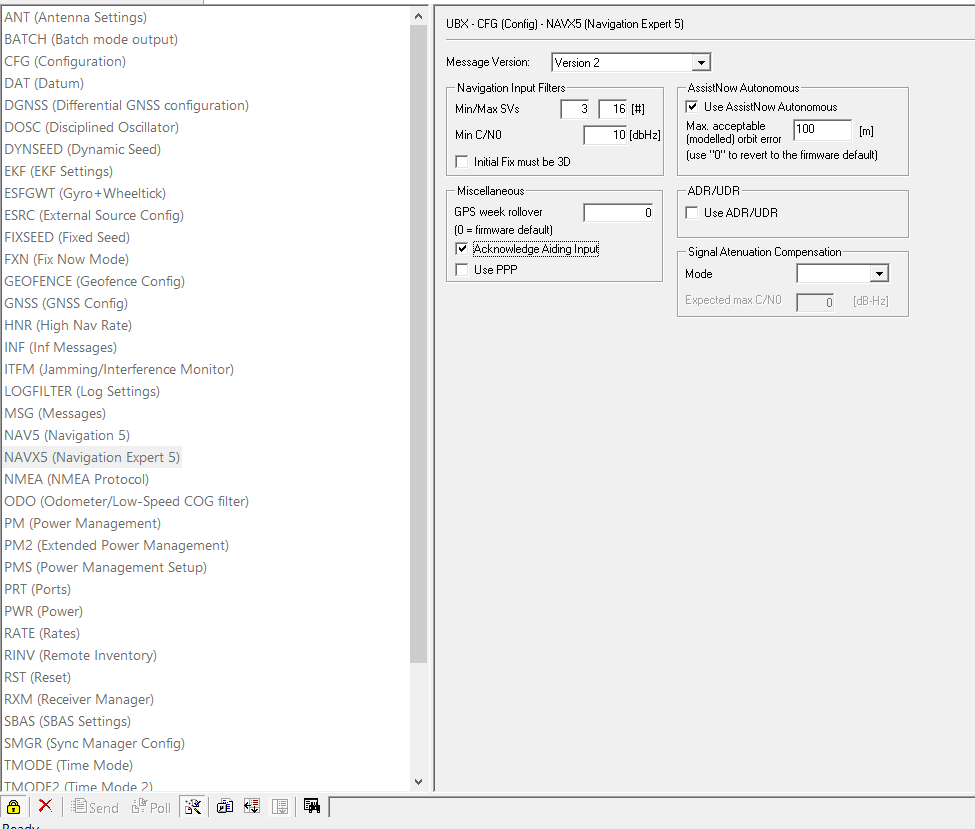
Open NAVX5 / Navigation Expert 5. In Navigation Input Filters, set Min C/N0 to about 10-15 dBHz. This is the minimum signal-to-noise ratio below which a satellite is excluded from the position solution. Enable AssistNow Autonomous to speed up cold starts and Acknowledge Aiding Input so the receiver confirms assisting data. Press Send.
NMEA: protocol version
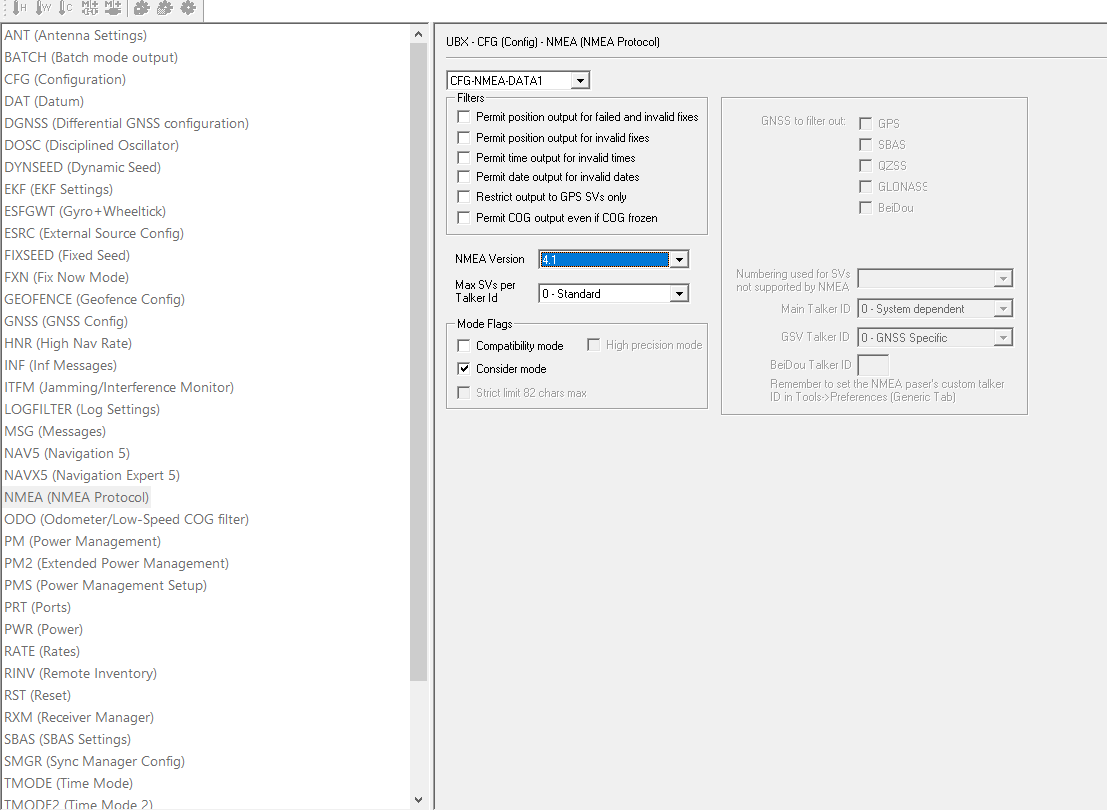
Open NMEA / NMEA Protocol. Check that NMEA Version is 4.10. If the version is lower, Galileo may not work correctly. Press Send.
RATE: update frequency
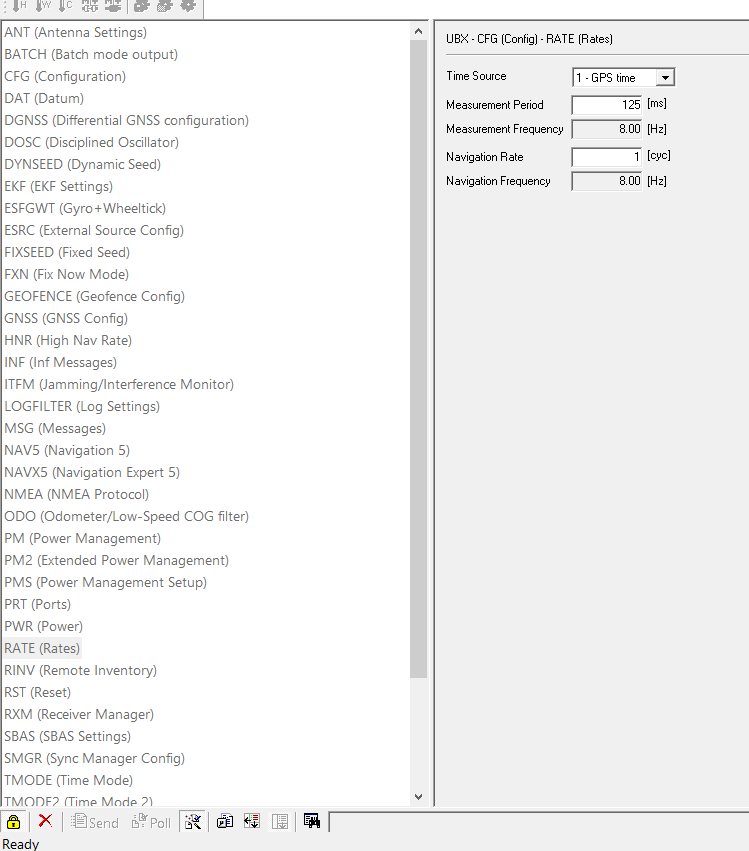
Open RATE. This setting defines how often the receiver measures and updates coordinates. For 5 Hz, set Measurement Period 200 ms; for 10 Hz, set 100 ms. In city driving, it is often better to start with 8 Hz / 125 ms or 5 Hz / 200 ms: the track is frequent enough and usually less prone to random jumps. Press Send.
SBAS: correction data
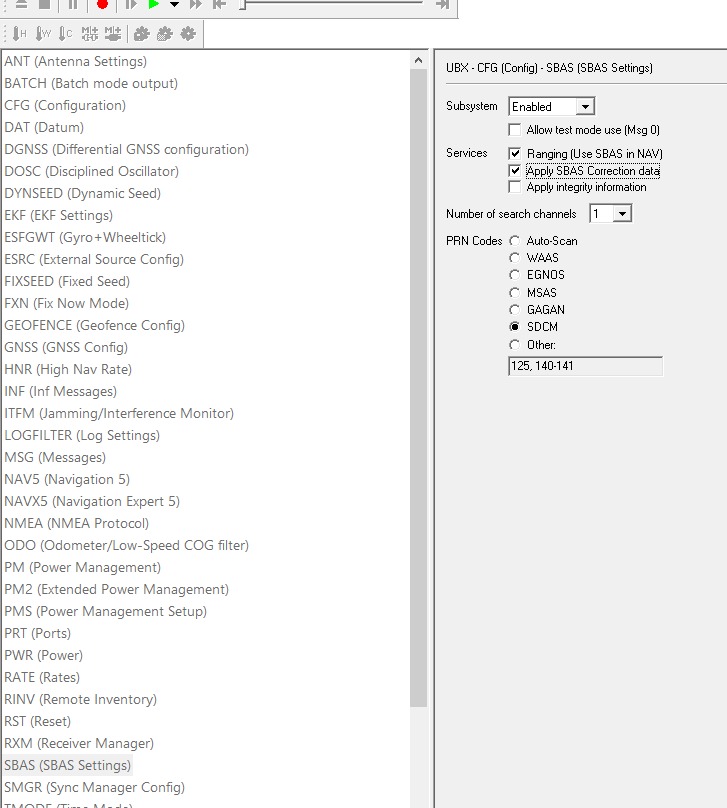
Open SBAS. For Russia, choose SDCM. Enable Apply SBAS Correction Data and Apply Integrity Information. Press Send.
PRT: USB and protocols
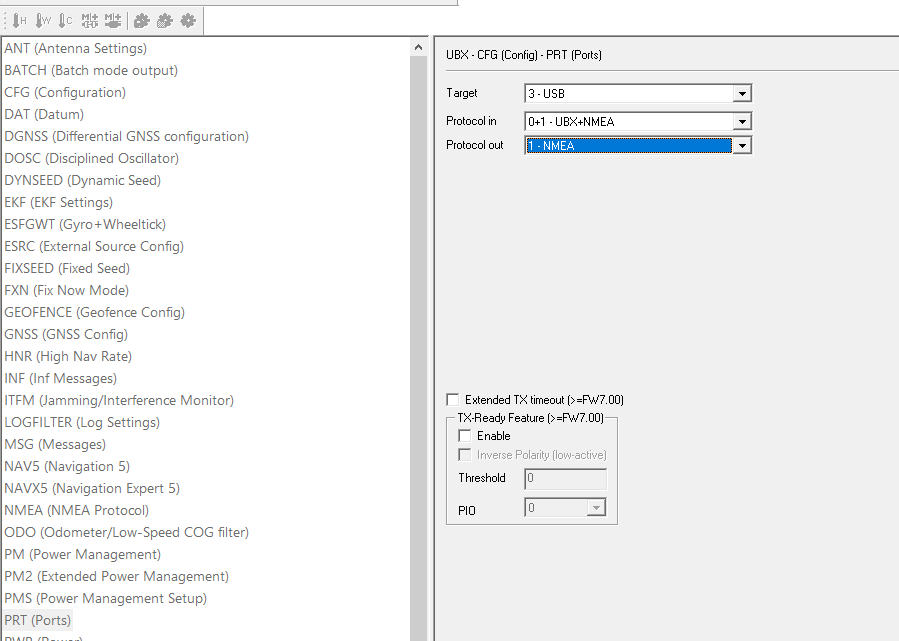
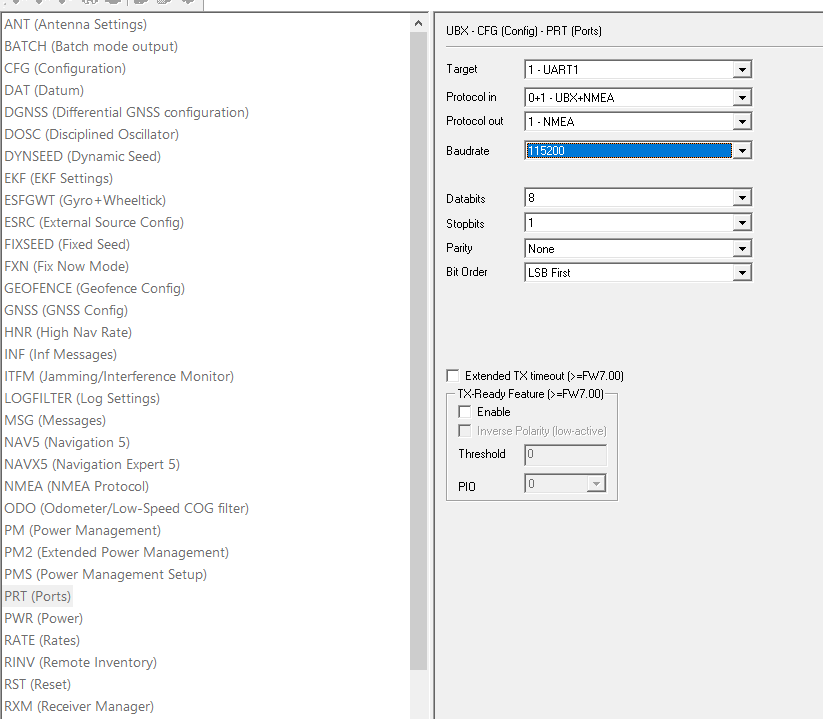
Open PRT / Port. For USB, leave Protocol In as UBX + NMEA, and leave Protocol Out as NMEA only. Navigation apps and JCarTools use NMEA; extra protocols only add unnecessary load to the head unit. Set UART1 Baudrate to 115200. Press Send.
PMS: power mode
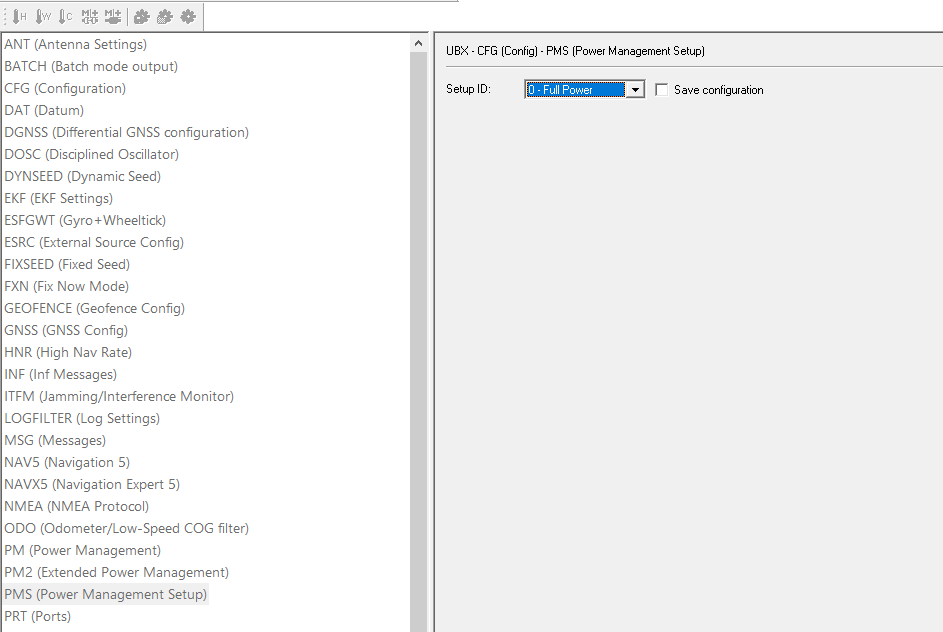
Open PMS and select FULL POWER. For car navigation, reception stability matters more than power saving. Press Send.
CFG: save configuration
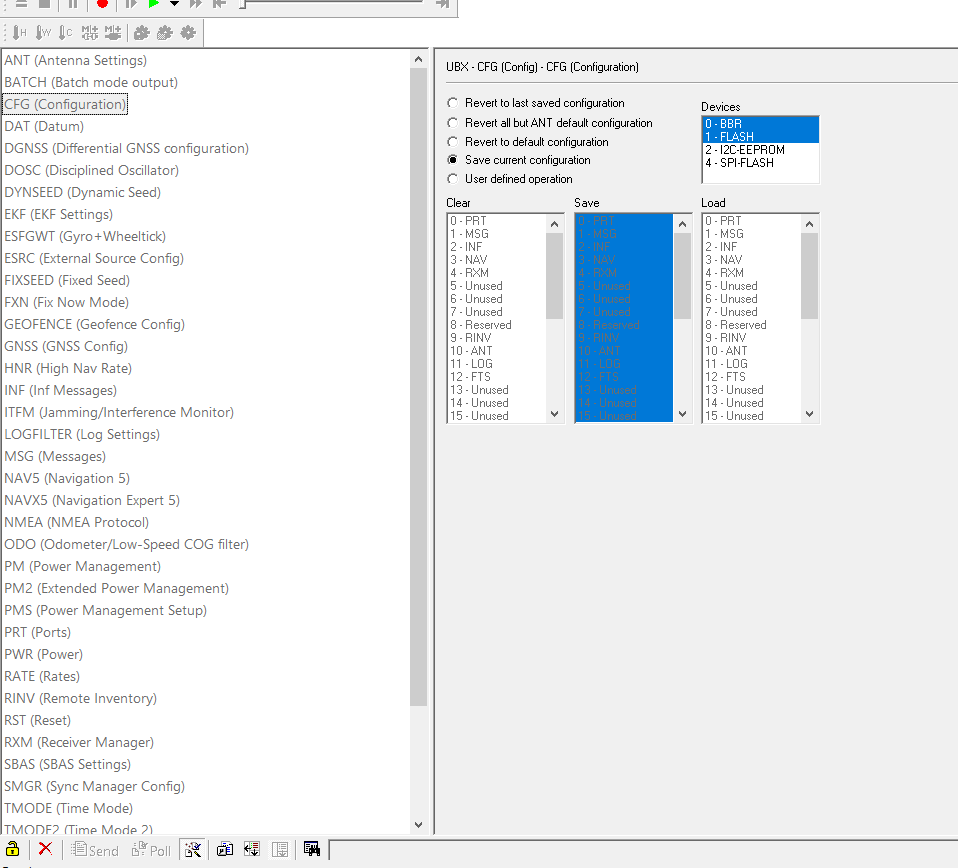
Open CFG / Configuration. Select Save current configuration. To select two storage targets, hold Shift and choose BBR and Flash. BBR keeps settings until power is removed; Flash stores them permanently. Press Send. To restore factory settings, choose Revert to default configuration and press Send.
Car setup: JCarTools
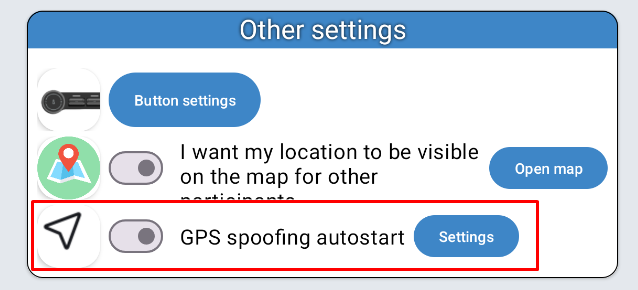
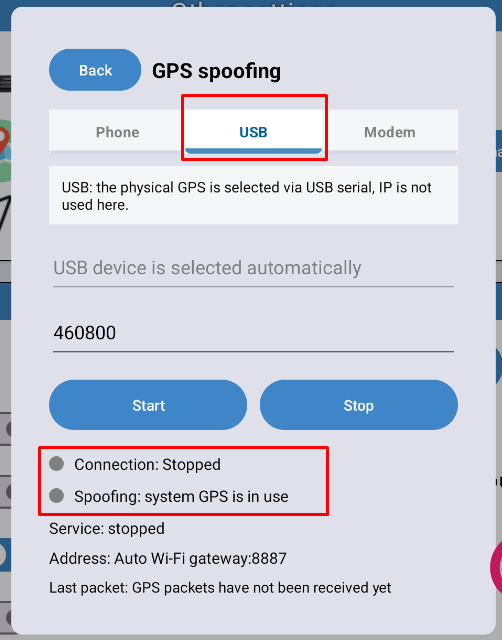
After configuring the receiver, connect USB GPS to the car USB port. In JCarTools, open Other settings, enable GPS spoofing autostart, open Settings and select the USB tab. Set the same baudrate as the receiver, usually 115200, then press Start.
If coordinates do not appear
Check baudrate
The JCarTools baudrate must match the receiver baudrate. For this guide, it is usually 115200.
Check NMEA output
Keep NMEA in Protocol Out. If the receiver outputs only UBX, navigation and JCarTools may not see coordinates.
Give the receiver time
First startup, underground parking, dense buildings and poor antenna placement can delay the satellite fix up to 10 minutes. Where GPS is jammed, software settings will not help.