FOWNIX: music, navigation and convenient commands

Models: FOWNIX FX · Tiggo 7 Pro / Pro Max · Tiggo 8 Pro / Pro Max

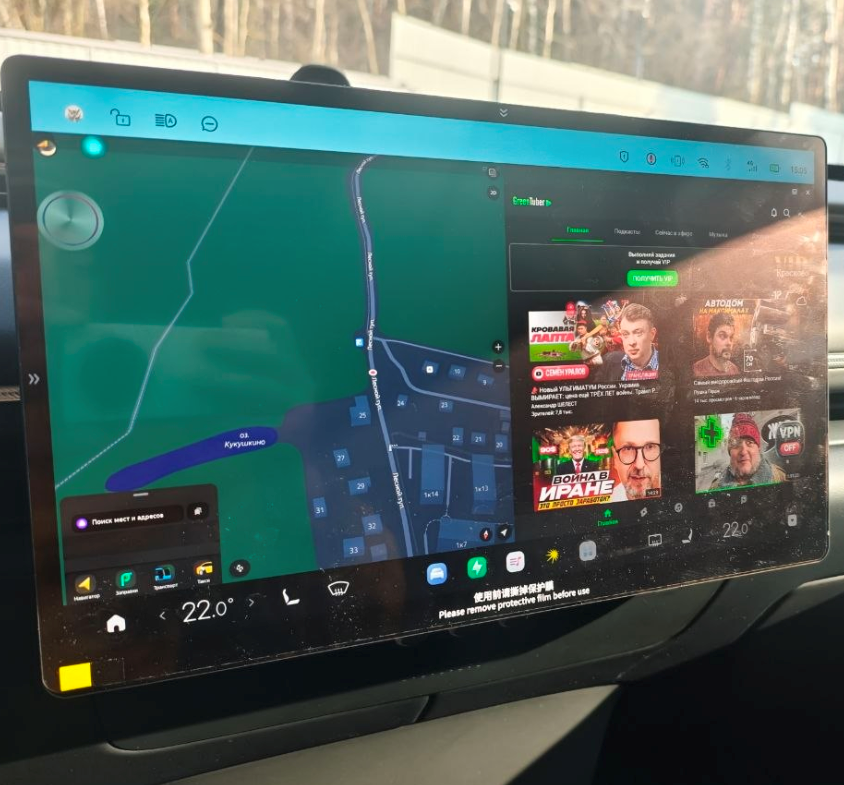
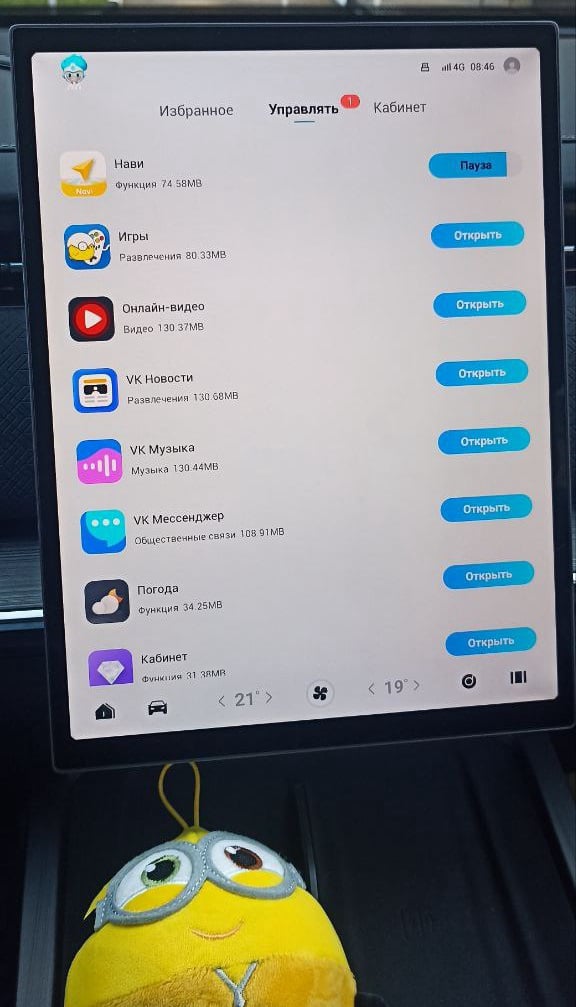
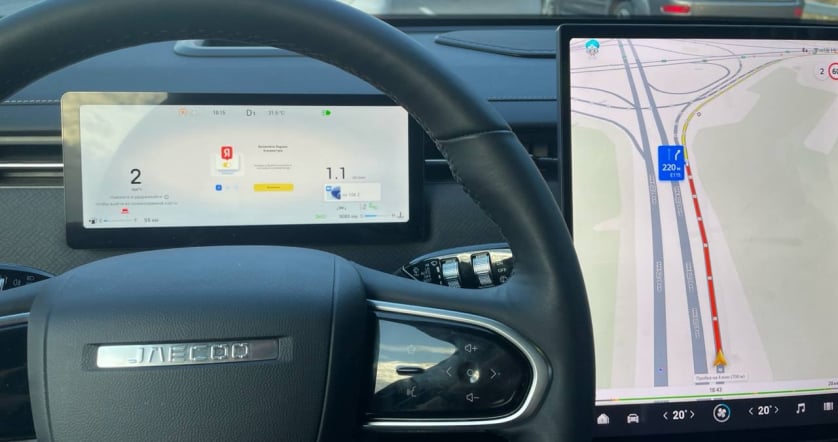
Make the FOWNIX screen a place for favourite apps. JCarTools offers convenient ways to open music, call a command and reach an everyday action faster.
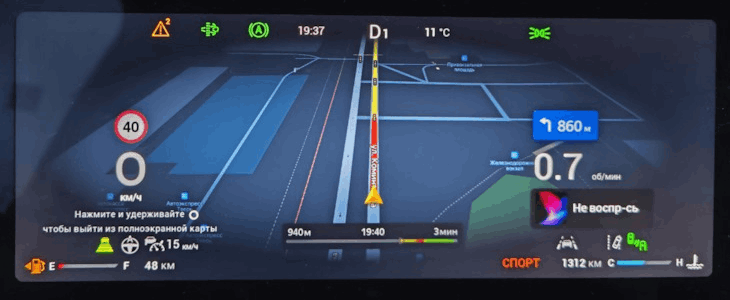
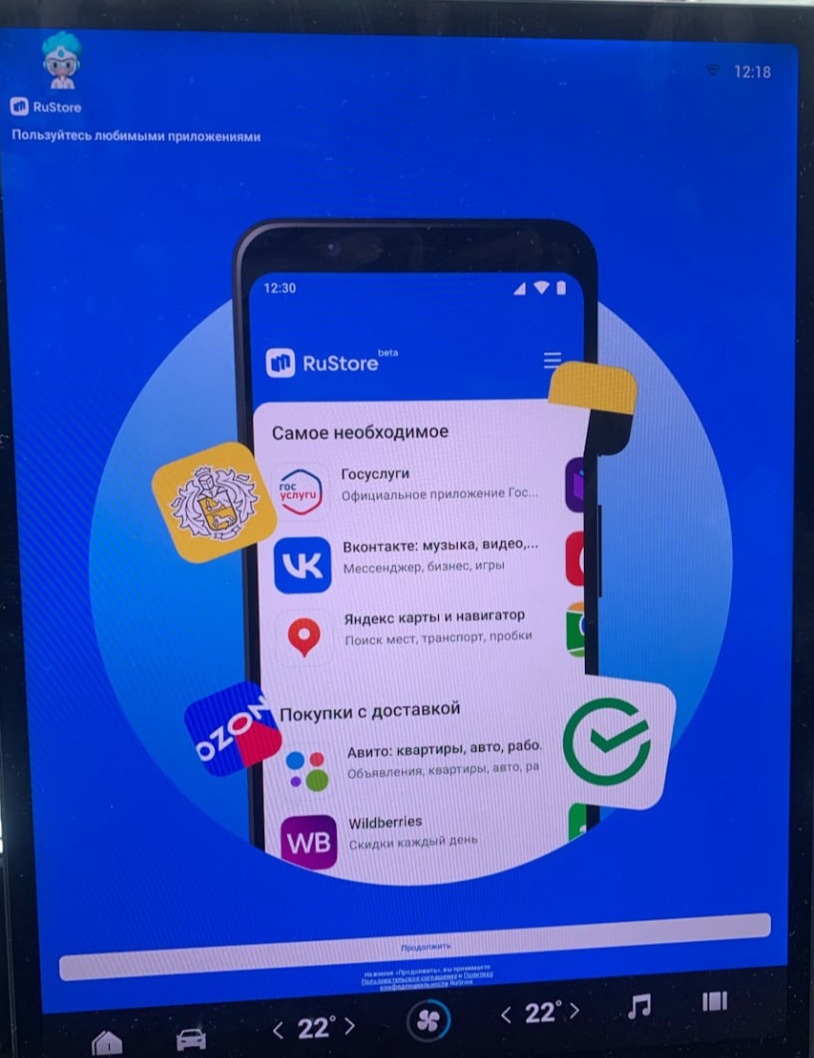
JCarTools feature example

With JCarTools You Can Also

A new route does not have to mean a new app. Keep familiar services and choose a convenient way to launch them. Discuss FOWNIX installation options and build a small, clear selection for daily journeys and longer trips.
JCarTools feature example
Store

Choose programmes that suit your country and habits. A useful selection matters more than the number of screen icons.

JCarTools feature example
Video

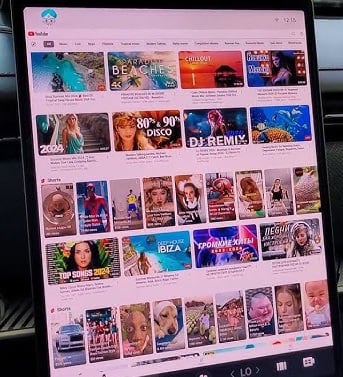
Enjoy something interesting while parked: the FOWNIX screen can also serve a quiet break between journeys.

JCarTools feature example
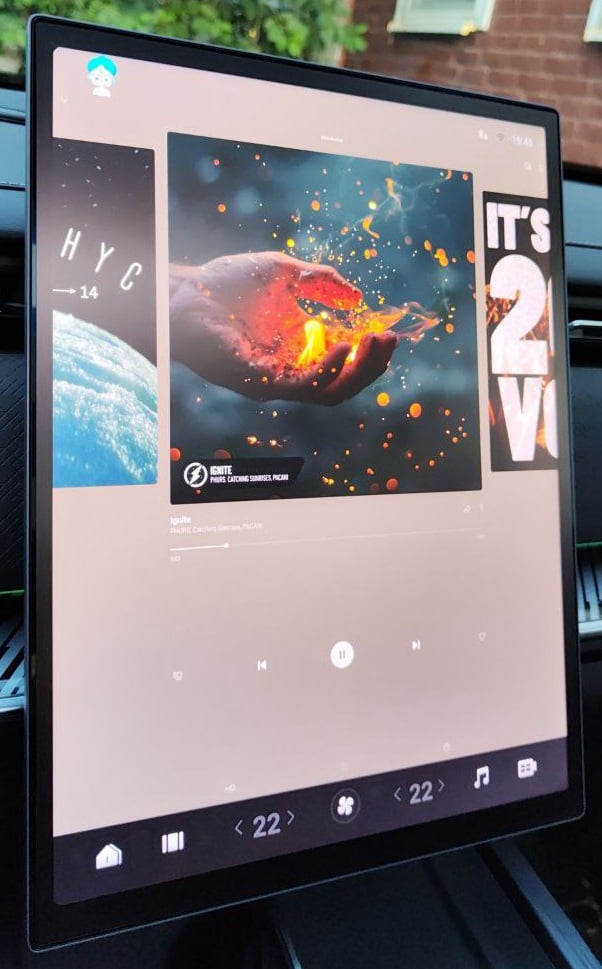
Music

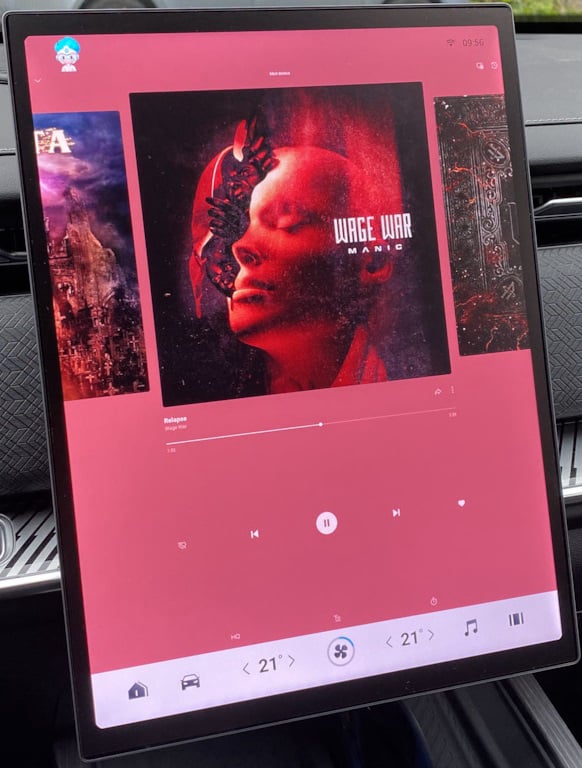
Keep familiar audio services close, wherever the next route leads.

JCarTools feature example
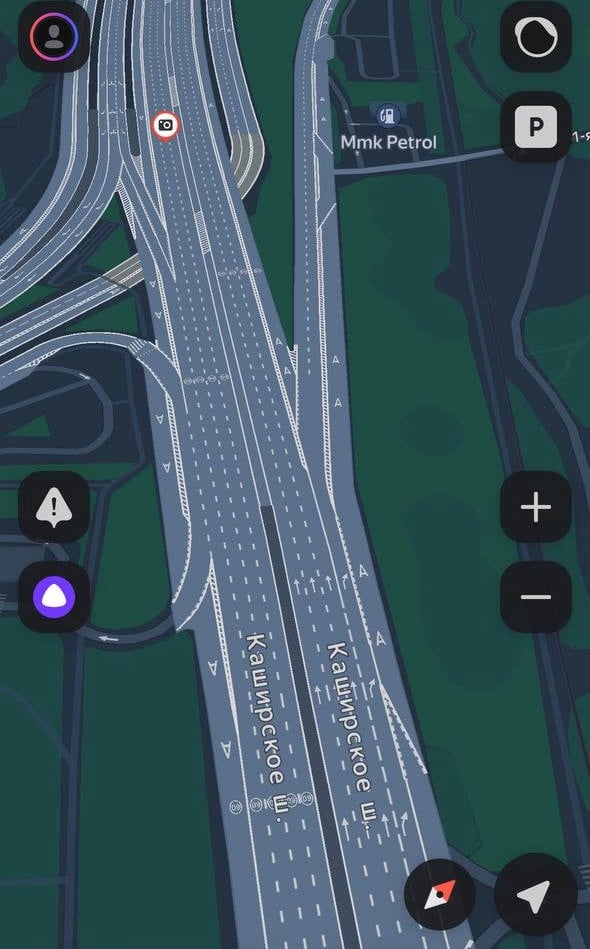
Navigation

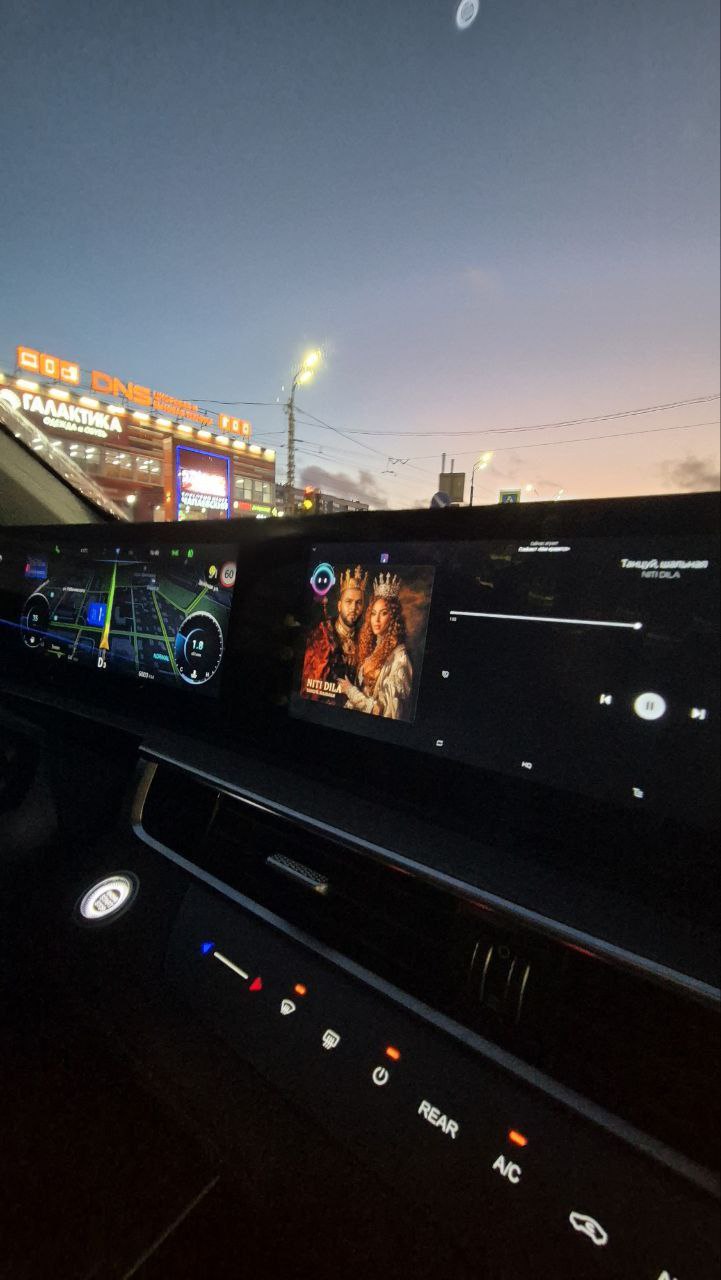
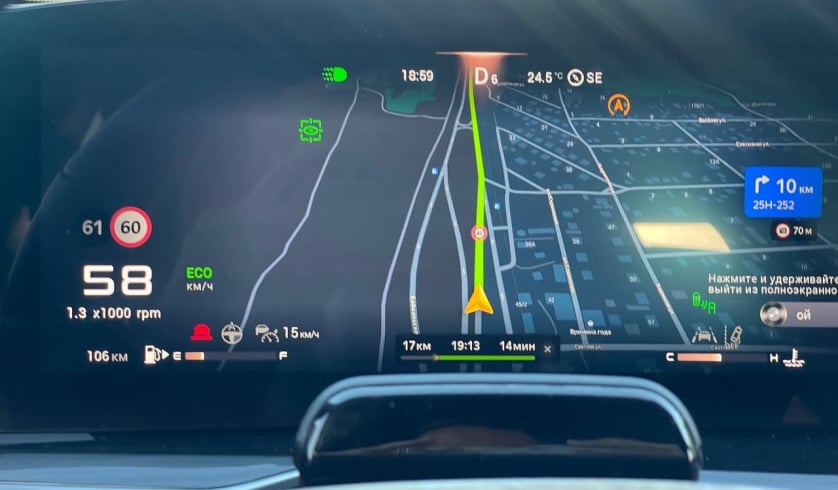
A useful map helps you find your way in a new place and feel familiar with the FOWNIX screen.

JCarTools feature example
Automation

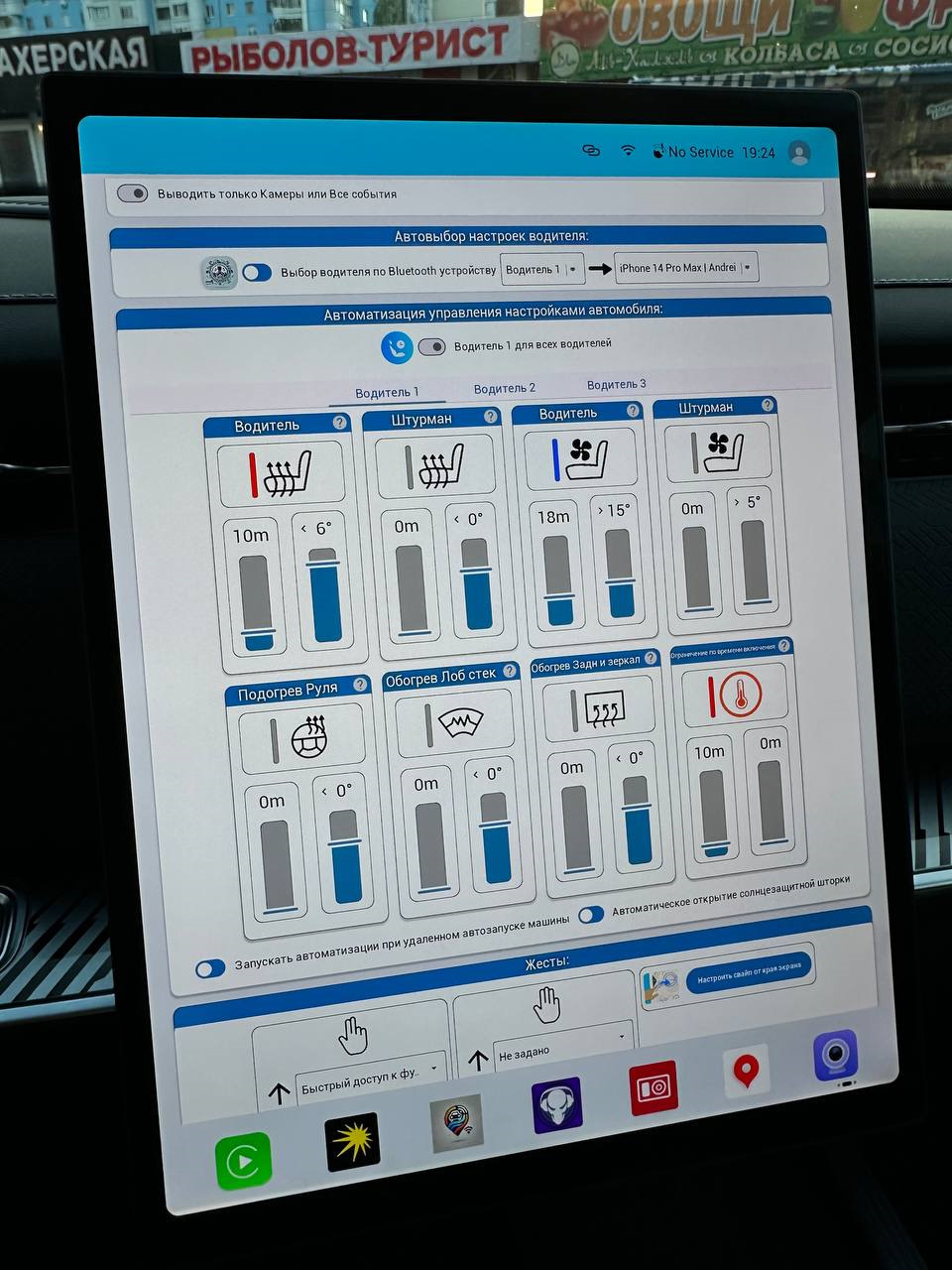
Bring daily actions into a short routine and leave more time for the journey itself.

Split screen mode on Android
Split Screen Mode

Arrange two apps side by side to make the display more useful for your own tasks.

Frequently Asked Questions

JCarTools feature example

Warranty

No interference with the car's system. Uses only built-in OS functions.
JCarTools feature example

Difficulty

Very easy procedure. You need a USB TYPE-A - TYPE-A cable and a laptop with a browser or OTG adapter for phone.

JCarTools feature example

Safety

Installing apps does not harm your vehicle.
JCarTools feature example

After Installation

Post-installation FAQs

Start Installation

The process is very simple! You will need a laptop with Chrome browser, USB TYPE-A <-> TYPE-A cable, and a USB flash drive.

Contacts

Contacts
Telegram channel: