Your favourite apps on OMODA C7 and the new C5

Models: OMODA C7 · new-generation C5

Make the OMODA screen feel like yours. Add favourite music, navigation on the centre display and convenient launch controls: JCarTools brings your everyday choices together.
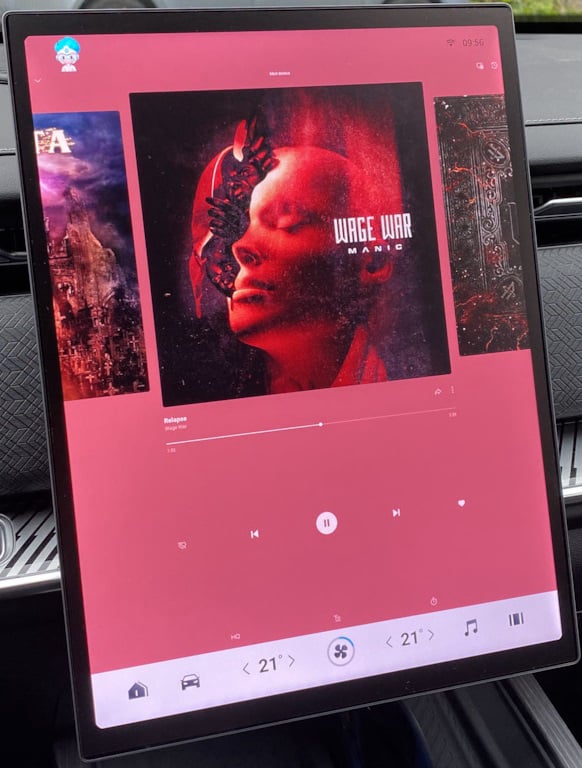
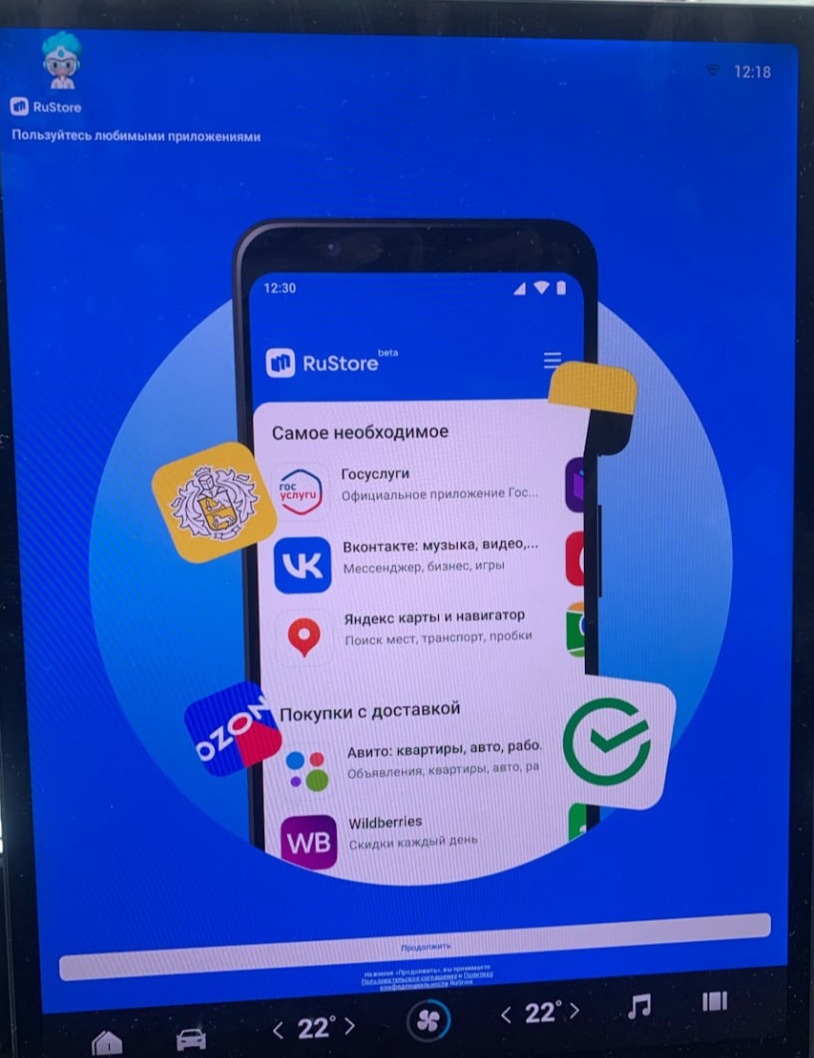
JCarTools feature example

With JCarTools You Can Also

Get into your OMODA, open a map and choose a playlist. When you want another app, use your own button or gesture instead of starting from the factory menu again. Arrange the screen around your familiar routine.
JCarTools feature example
Store

Add music services and navigation apps to the head unit. Keep the music you enjoy and choose a map you like using.

JCarTools feature example
Video

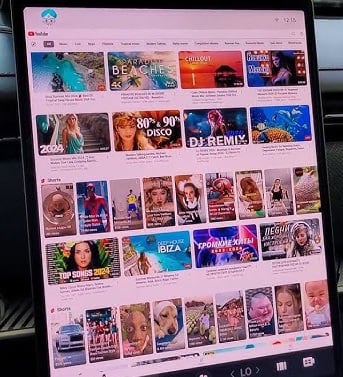
Enjoy favourite clips and online films on the large OMODA screen while parked.

JCarTools feature example
Music

Choose a mood for your C7 or new C5 journey with the music services you already enjoy.

JCarTools feature example
Navigation on the centre screen

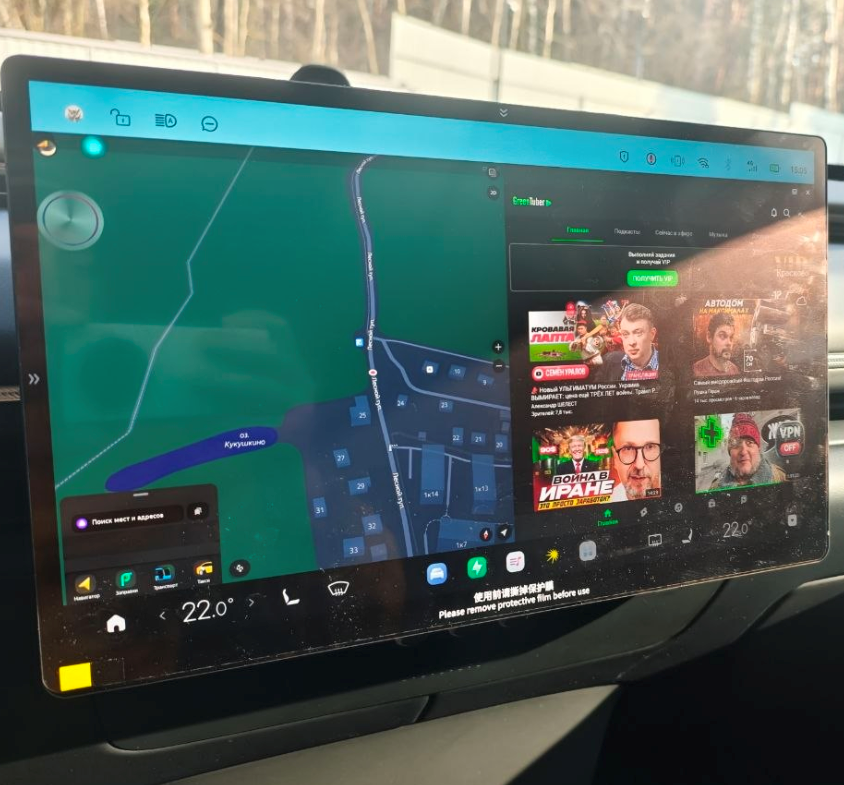
Launch navigation on the OMODA centre screen and keep a familiar map and route in view.

JCarTools feature example
Automation

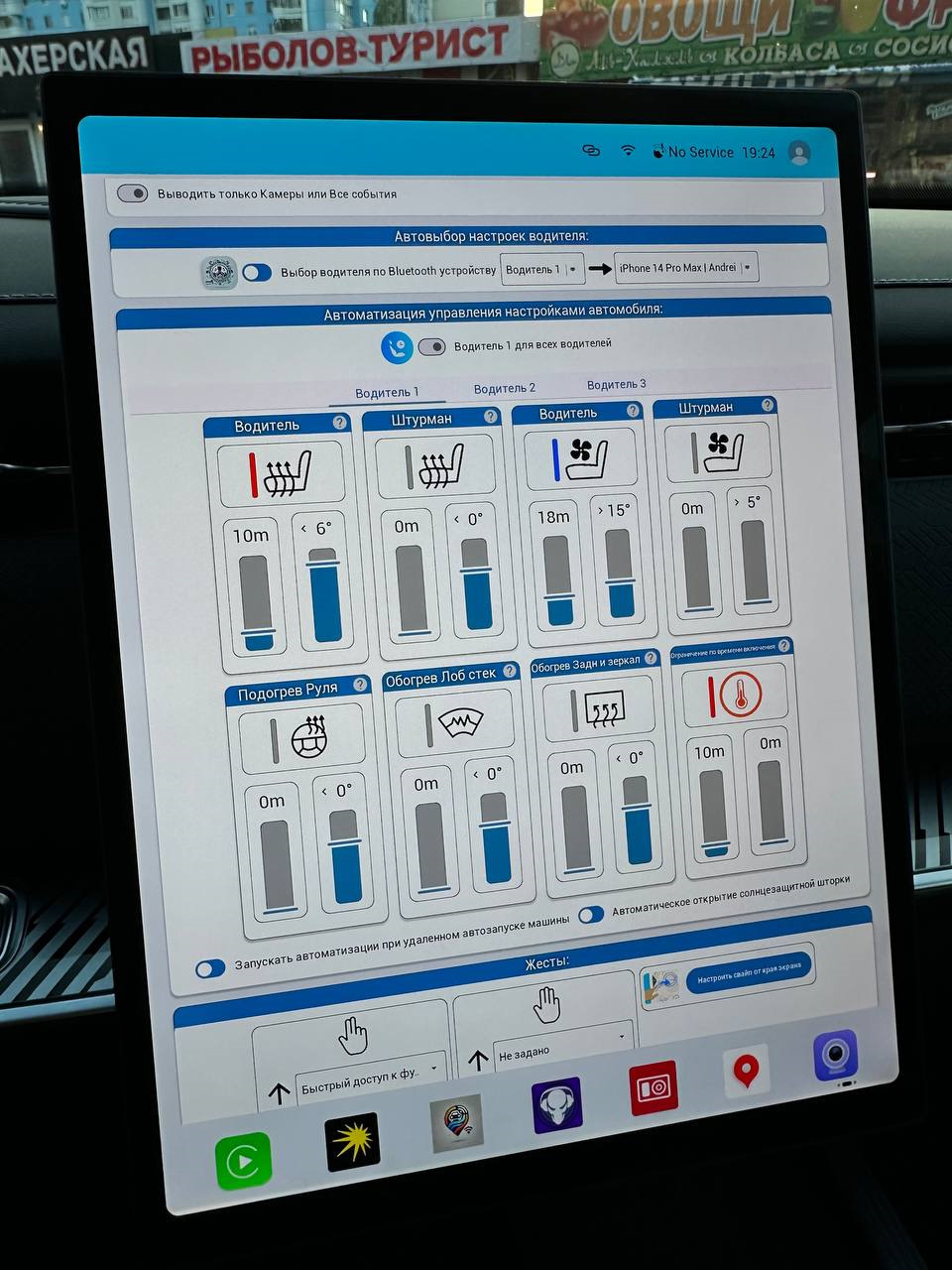
Use available automatic actions to reduce repeated setup before a drive.

Split screen mode on Android
Split Screen Mode

Keep a map and a second app side by side to make better use of the OMODA centre display.

Frequently Asked Questions

JCarTools feature example

Warranty

No interference with the car's system. Uses only built-in OS functions.
JCarTools feature example

Difficulty

Very easy procedure. You need a USB TYPE-A - TYPE-A cable and a laptop with a browser or OTG adapter for phone.

JCarTools feature example

Safety

Installing apps does not harm your vehicle.
JCarTools feature example

After Installation

Post-installation FAQs

Start Installation

The process is very simple! You will need a laptop with Chrome browser, USB TYPE-A <-> TYPE-A cable, and a USB flash drive.

Contacts

Contacts
Telegram channel: