Screenshots and menu names follow JCarTools 2.0.1 beta. Menu placement may differ on narrower screens; use the section names to find each setting.
One action, several ways to trigger it
Think about a normal drive. Voice is convenient for opening navigation while your hands are on the wheel. At night, a familiar edge swipe can turn on the black screen. Seat heating may be better on a visible on-screen button. These are different situations, but JCarTools configures them in the same way.
JCarTools provides a shared action list. First choose what should happen, then choose how to trigger it. The same action can be assigned to a floating button, multi-button, screen gesture, edge swipe, voice phrase or supported physical vehicle button.
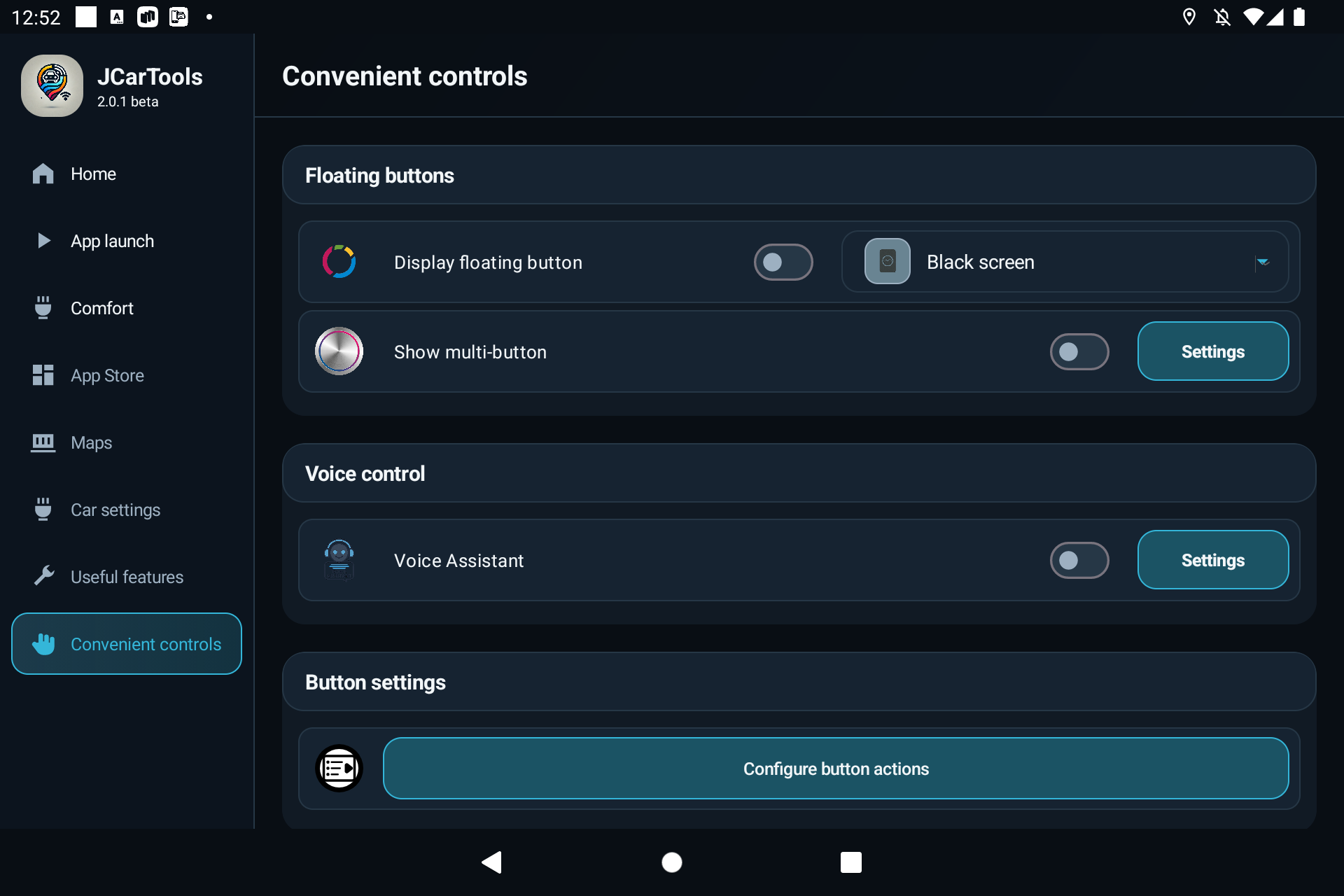
What is available in the shared action list
The list is built for the selected profile and installed applications, so it can differ between vehicles. It may include:
- Yandex Maps, Waze, music players and other installed applications;
- switching between the instrument cluster and head unit, plus Back and Home;
- split screen, recent apps and a previously configured task group;
- playback, pause, next track and volume controls;
- temperature, recirculation, heating and ventilation controls;
- supported vehicle commands such as the sunshade, steering-wheel heating or seat heating.
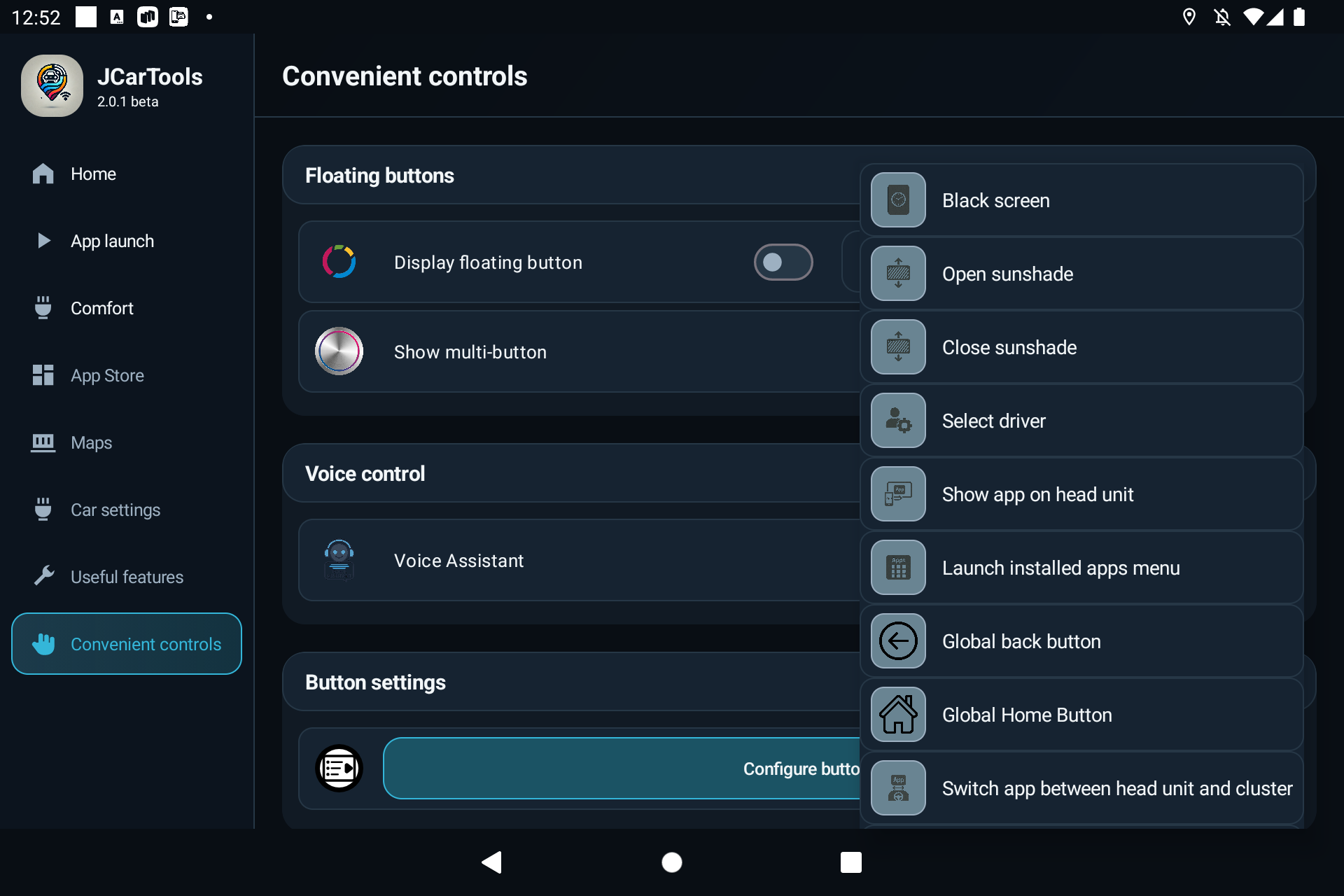
If a vehicle command is missing, first check that the profile matches your exact make and model. Do not choose a different profile simply to obtain a longer list: the command may be incompatible with your vehicle.
Floating button and multi-button
A single floating button is best for one action you use often, such as opening navigation or moving an application between the head unit and instrument cluster.
The multi-button opens a set of four or eight assignments. It is useful when you want maps, music, recent apps, the black screen or comfort controls close at hand.
- Open Convenient controls → Floating buttons.
- Enable either the single button or the multi-button.
- For the multi-button, tap Configure and select an action for each direction.
- Save the settings and position the button where it does not cover factory controls.
Run a group of actions with one command
Sometimes one action is not enough. Before a drive, for example, you may want to open navigation, display it on the instrument cluster and start music. JCarTools lets you configure the sequence once and run the whole group later.
- Open App launch and scroll to Apps on the head unit. Select Settings next to Automatically run task group.
- Tap Add command and choose the required actions. They run from top to bottom.
- Set the interval between actions from 1 to 20 seconds. Allow a few seconds when applications or displays need time to open.
- Remove unnecessary rows and tap Save.
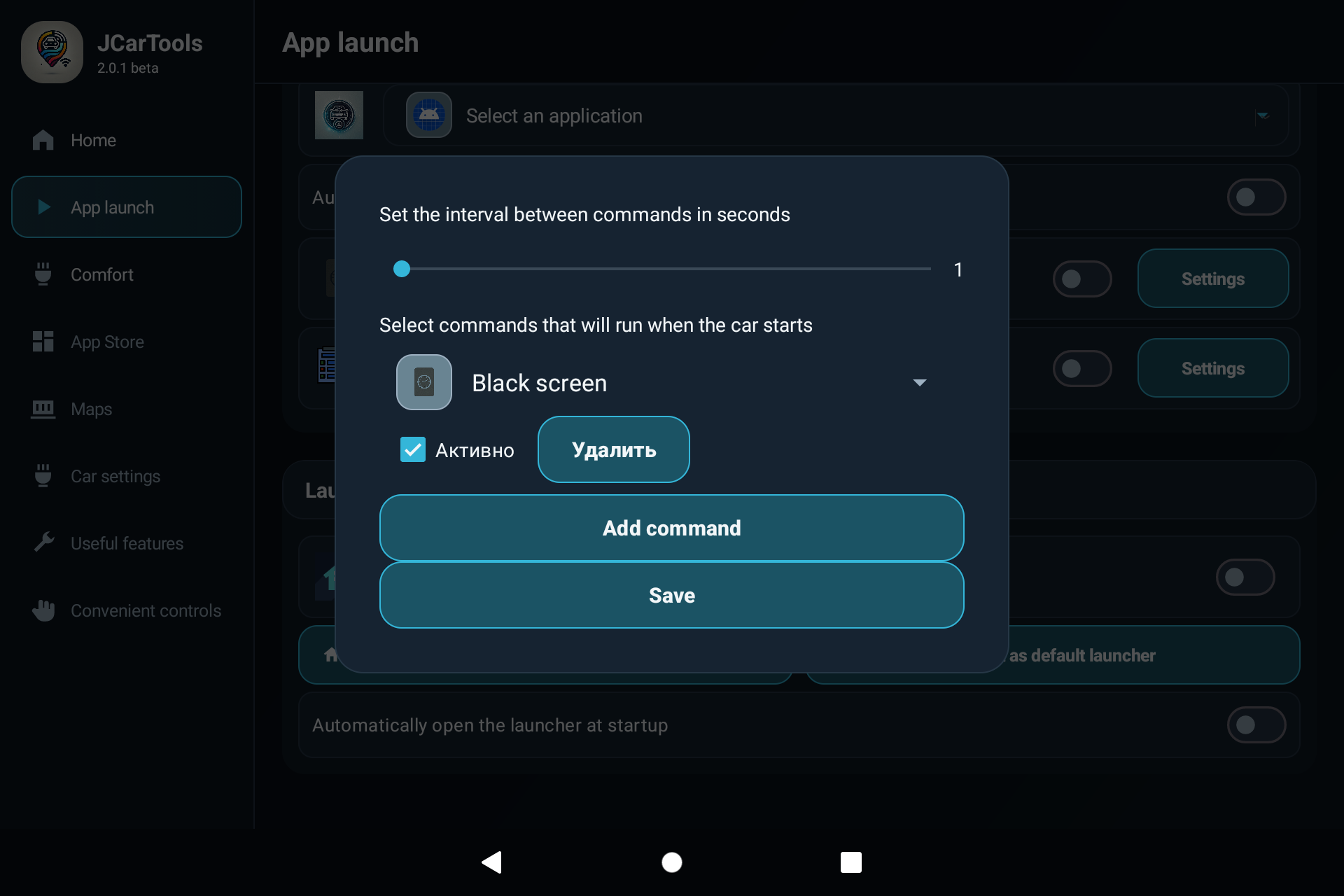
You can then trigger the group in either of two ways:
- Automatically when the vehicle starts: enable the switch next to the group setting.
- Manually when needed: select Run task group from the shared action list and assign it to a floating button, multi-button sector, gesture, edge swipe, voice phrase or supported physical button.
Example: a “Let’s go” group opens maps, waits a few seconds, displays the app on the instrument cluster and then starts music. One button or phrase replaces several separate commands.
Do not use an interval that is too short and avoid mutually exclusive actions. If one command has not finished, the next may not behave as expected.
Screen gestures and edge swipes
Stay in Convenient controls and scroll below the button settings. Screen gestures come first, followed by the edge-swipe zones.
A gesture is useful for an action you can remember without searching the screen. A two-finger swipe down might activate the black screen, while a swipe right might return to navigation. Available directions and finger counts depend on the selected profile.
Edge swipes are configured separately. The display is divided into upper and lower zones on the left and right sides, plus zones along the bottom. Each zone can have its own action and can be enabled independently.
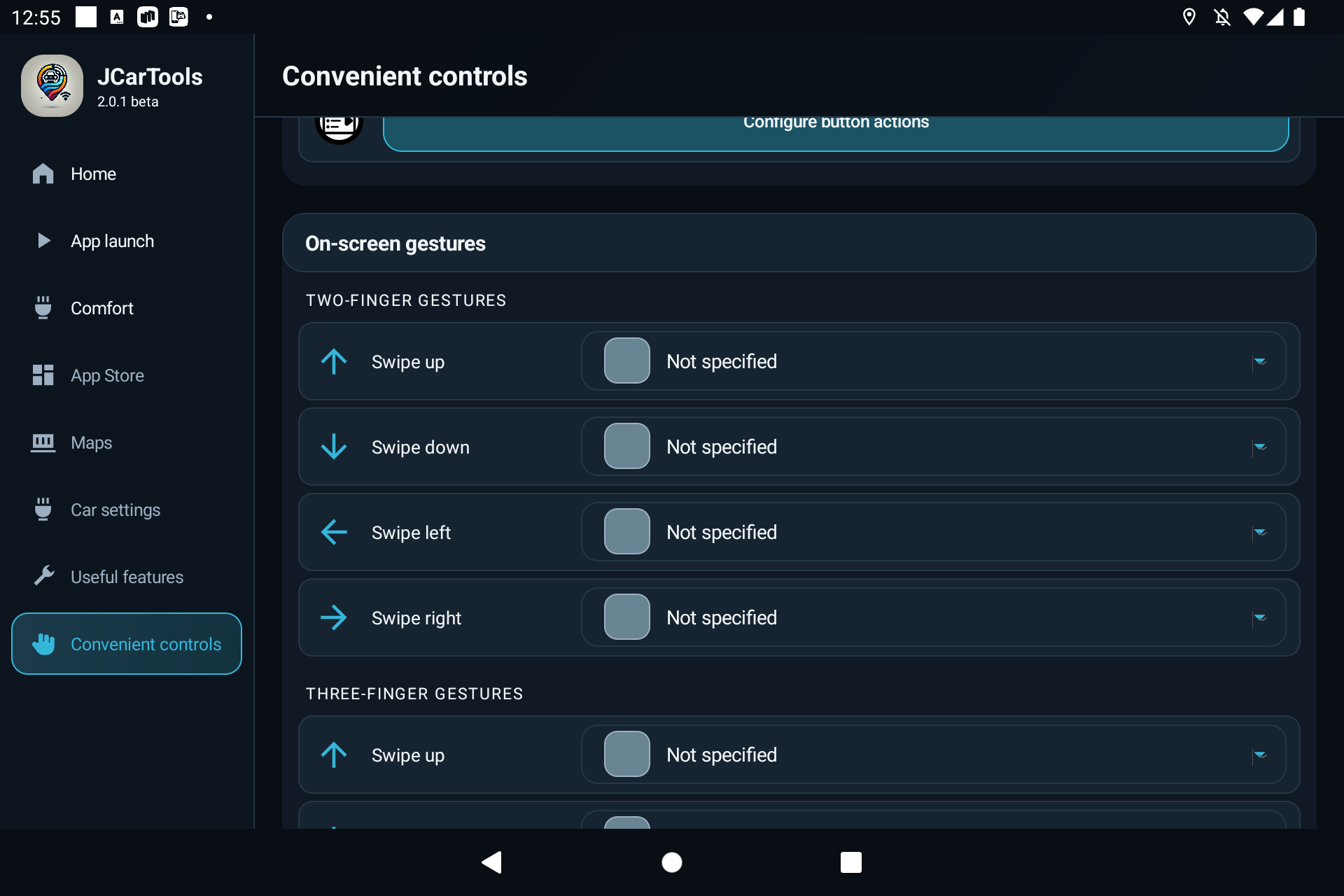
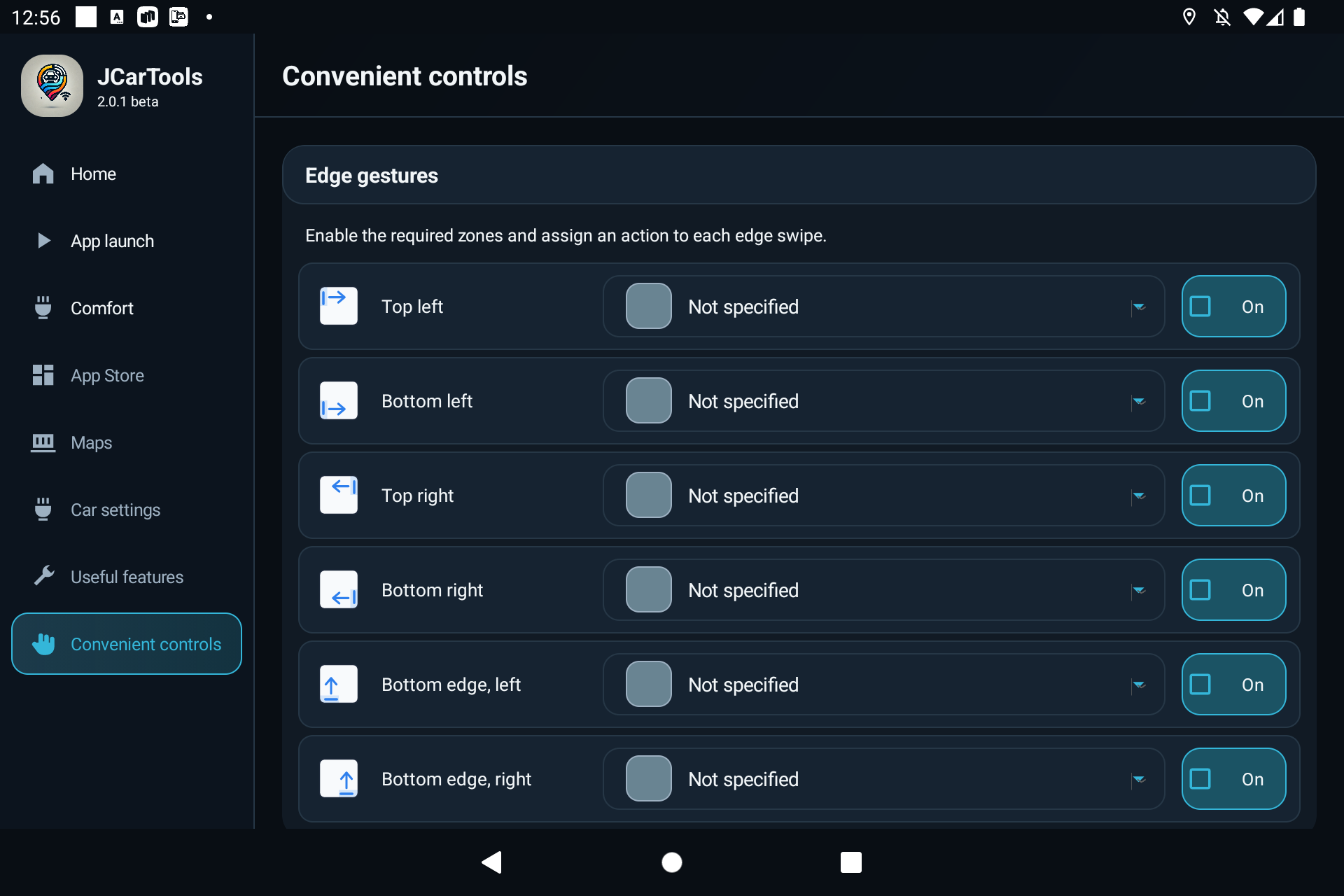
Edge swipes may conflict with system navigation, climate controls or gestures from another app. Enable one zone at a time and keep only those that work predictably.
Voice assistant: use your own phrases
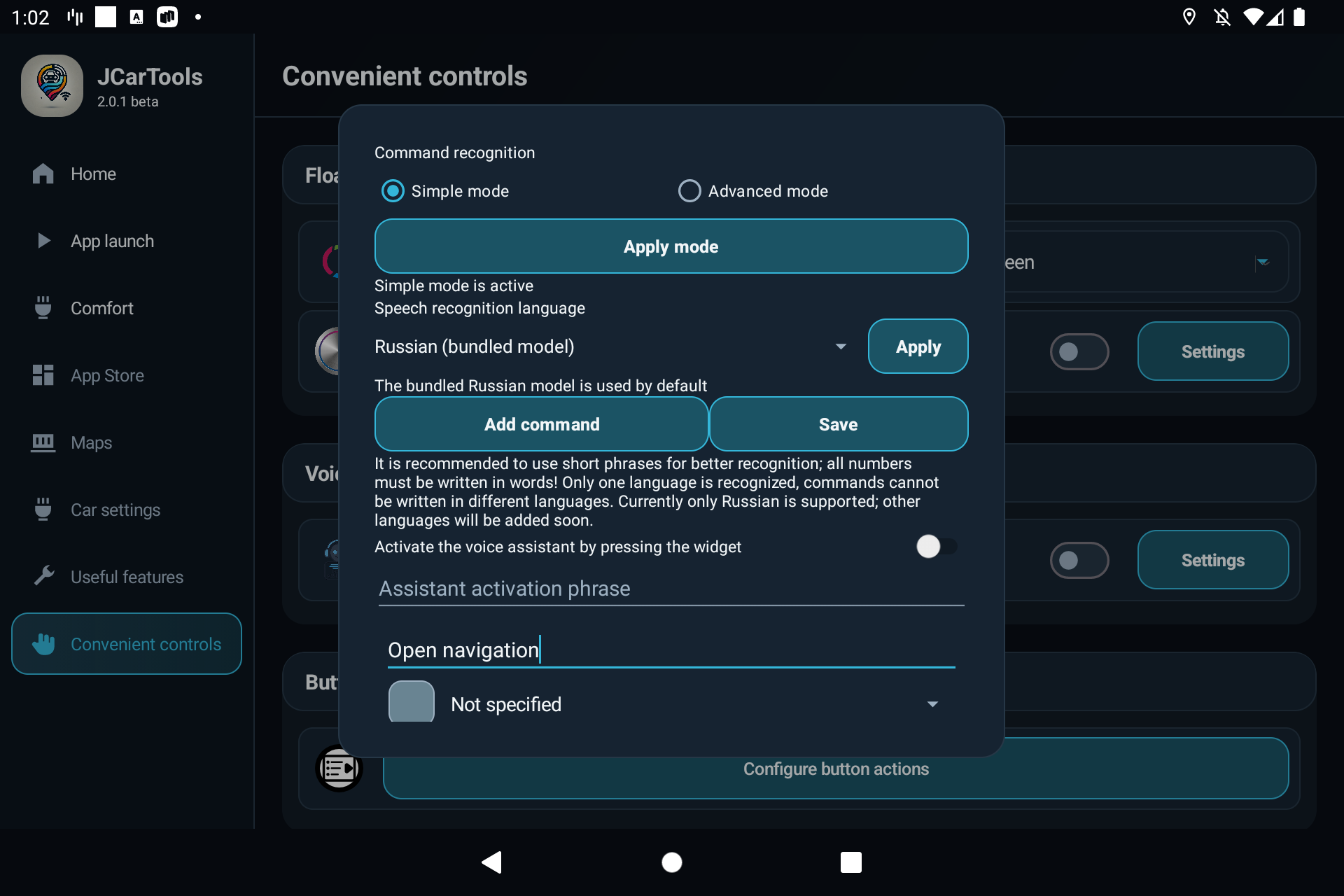
Open Convenient controls → Voice control → Settings. Choose a recognition mode at the top of the window and tap Apply mode.
Simple or Advanced: do you need to add commands?
In Simple mode, yes. You enter each phrase and choose its action. For example, add “Open maps” and link it to opening navigation. Without these assignments, the assistant does not know what to do.
In Advanced mode, the assistant can perform all commands available in the shared action list. That list depends on your vehicle and selected profile. You do not need to add each action as a separate voice command.
You can still use your own wording. Prefer saying “Time to go” instead of “Open maps”? Add that command manually and select the navigation action. You can also use a manual command to clarify exactly which action you mean.
Separately, choose how to start listening: with a wake phrase or manually through an action. Both activation methods work in Simple and Advanced modes.
Mode 1: activation phrase
Leave Activate the voice assistant by tapping the widget disabled and enter an activation phrase. It can contain several words, such as “Hey, car” or “Hello, hey, car”. If “Hey, car” is configured, the assistant can also detect it inside a longer phrase.
A distinctive two- or three-word phrase is less likely to be triggered accidentally by conversation or music.
Mode 2: manual activation through an action
Enable Activate the voice assistant by tapping the widget. Voice activation is disabled, and the assistant is started by the Activate voice assistant item in the shared action list.
Assign this action to a floating button, multi-button sector, screen gesture, edge swipe or supported physical vehicle button. Press the button or perform the gesture, and the assistant starts listening.
How to add your own command
In Simple mode, this is how you define every command. In Advanced mode, it is optional: use it for custom wording or clarification. Save the phrase-to-action assignment first, then activate the assistant and say the phrase.
- Enable Voice assistant and tap Configure.
- Select one recognition language.
- Tap Add command and enter a short phrase.
- Select an action from the shared list, enable the command and save it.
- Test the phrase from the driver’s seat at your normal music volume.
Steering-wheel and other physical buttons
Supported profiles can connect a physical vehicle button to an action from the same catalogue. The relevant section is shown only when the selected profile supports this method.
Avoid replacing important factory functions. Start with a rarely used button and a safe action, such as Pause or opening navigation, then test short and long presses while parked.
Assign an action from the button log
This method is useful when a physical button creates a system-log event but has no ready-made setting. JCarTools records suitable events so you can select one and connect it to an action.
- Open Convenient controls → Button settings → Configure button actions.
- Keep a suitable filter in Line must contain, for example
keycode. - Tap Start recording, then press the required physical button once.
- Stop recording and inspect the events. Saved assignments stay at the top. The newest detected events appear immediately below them.
- Select the required event, choose an action from the shared list and confirm it.
- To remove an assignment, select the saved row and choose Not set.
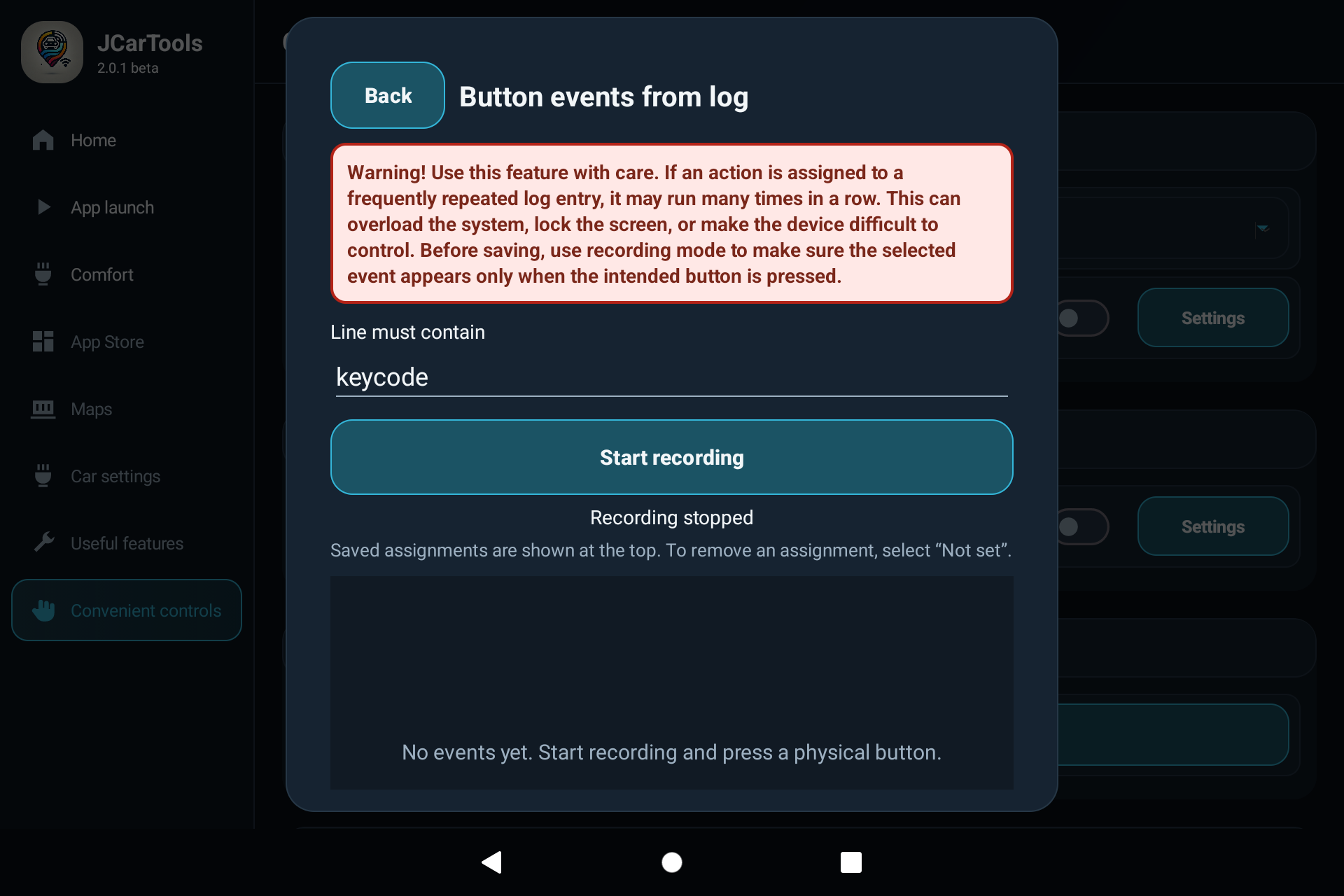
If an action is assigned to a frequently repeated log entry, it may run many times. This can overload the system, block the display or make the head unit difficult to control. Confirm that the event appears only when the intended button is pressed.
Three practical setups
Daily city driving
- floating button—open Yandex Maps or Waze;
- voice phrase—display maps on the instrument cluster;
- edge swipe—open recent apps or return Home.
Night driving
- two-finger swipe down—activate the black screen;
- floating button—return to the required app;
- voice—control music without searching for small buttons.
Cold weather
- multi-button—driver’s seat, steering-wheel and window heating;
- “Make it warmer”—increase the driver’s temperature;
- an unused gesture—toggle air recirculation.
You do not need to configure everything at once. Start with two actions you use every day. Add another only after the first two have become familiar.
Final check
- Confirm that the selected profile matches your own make and model.
- Test every button, phrase, gesture and action group separately while parked.
- Remove duplicate assignments and commands you do not use.
- Make sure overlays do not cover cameras, climate controls or system warnings.
The shared action list is what makes JCarTools flexible: instead of adapting to someone else’s controls, you build a setup around your vehicle, habits and daily routes.