One action, several ways to trigger it
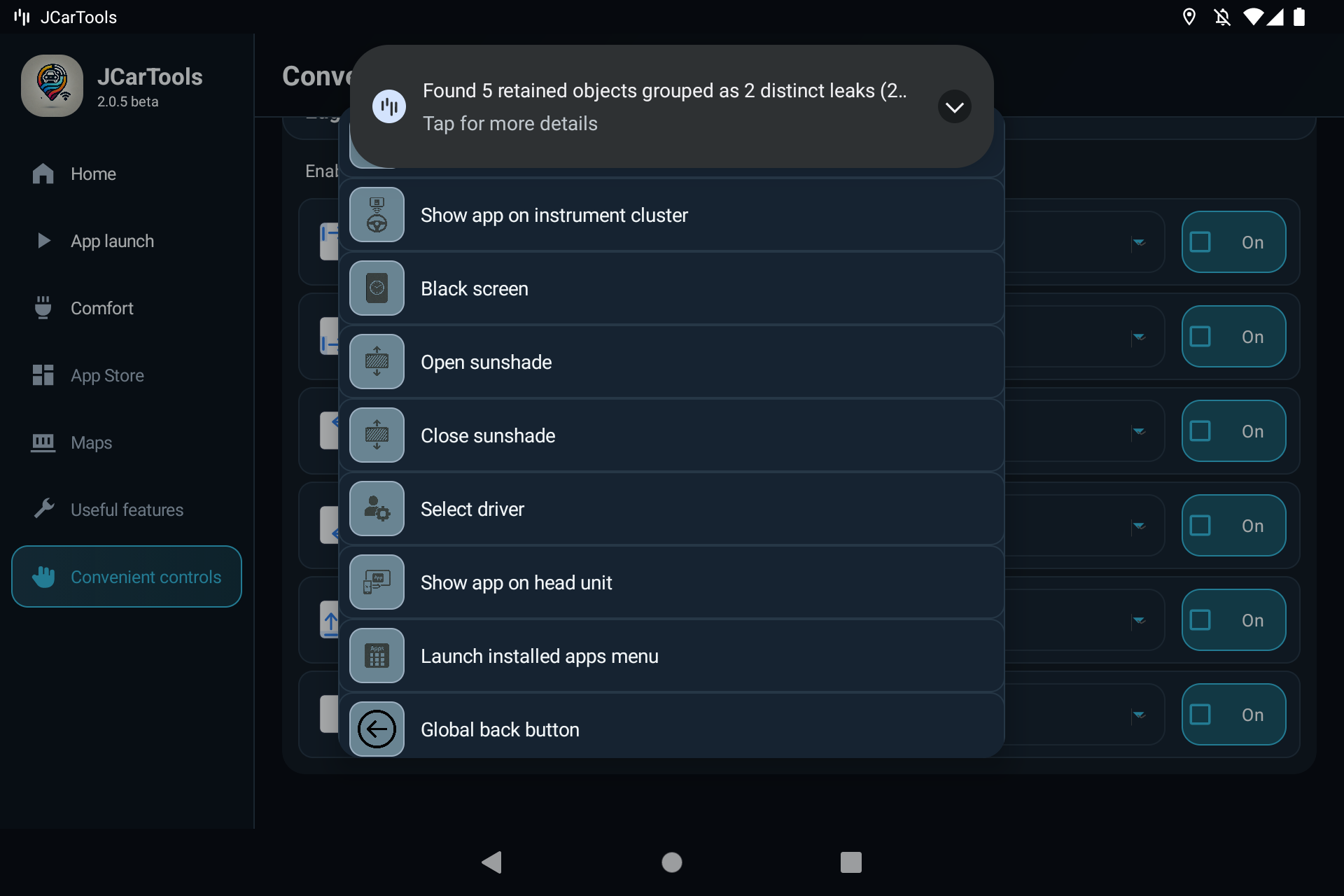
Look for “Global back button” in the shared JCarTools action list. This invokes Android's system Back action, rather than a button belonging to one particular app.
It usually returns to the previous screen or dismisses a menu or dialog. With the keyboard open, the first invocation may hide it; another may go back a screen. The app on screen determines its response.
Back is not Home, and it is not Force stop. It does not forcibly terminate the app. Returning to the home screen and managing running apps use other actions.
Option 1. Swipe from the edge, like on a phone
This is useful when you do not want another button covering navigation. For example, swipe inward from the left edge to go back.
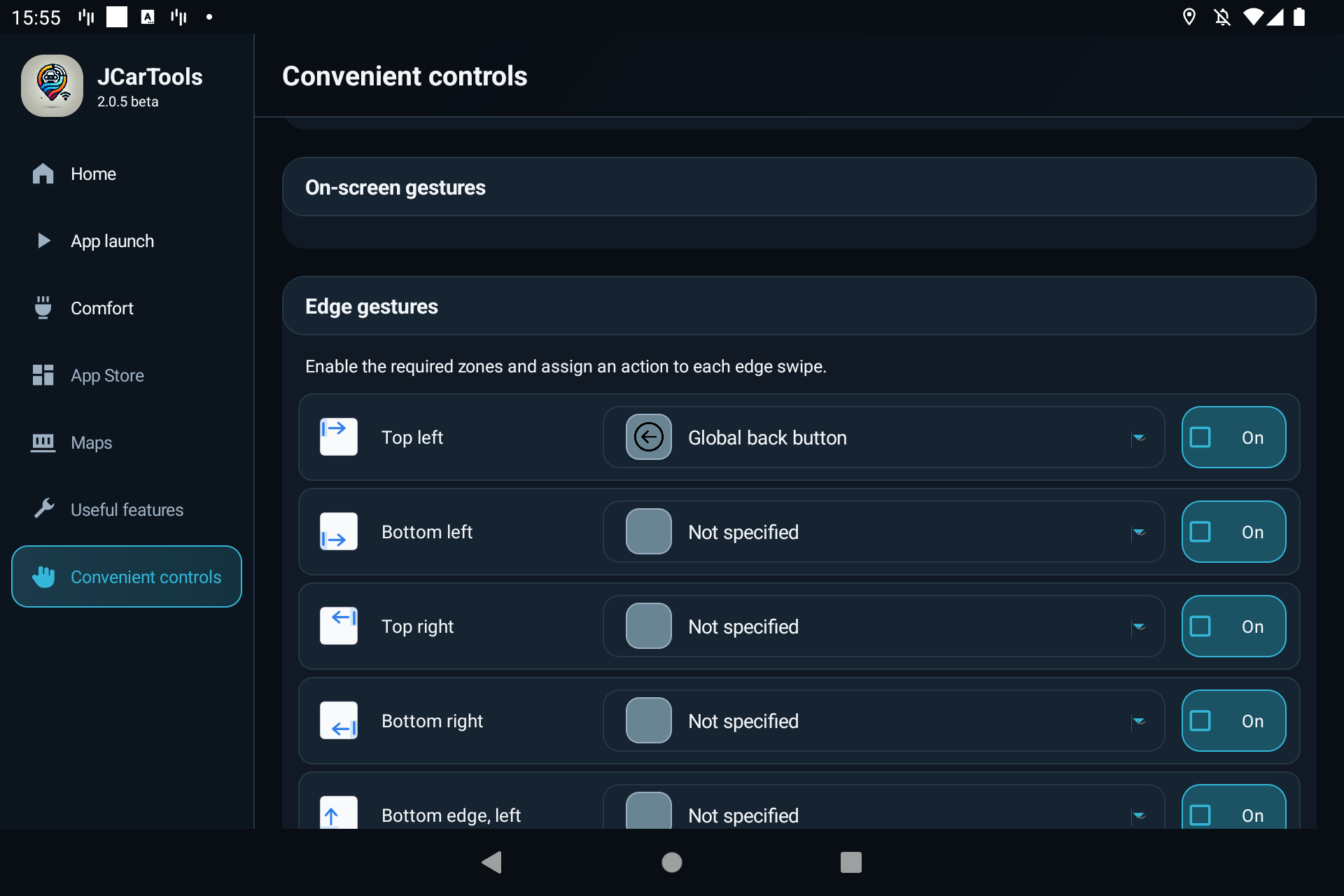
- Open “Convenient controls” and find “Edge gestures”.
- Choose a zone that is comfortable to reach, such as the upper-left zone.
- Assign “Global back button” from its action list.
- Enable that zone using its On checkbox. Selecting an action alone does not enable the gesture.
- Open an app and test an inward swipe from the selected edge.
If your profile also offers screen gestures, you can assign the same action to an available direction and finger count. Start with one gesture and check that it does not interfere with maps, scrolling or stock controls.
Option 2. A floating button or multi-button
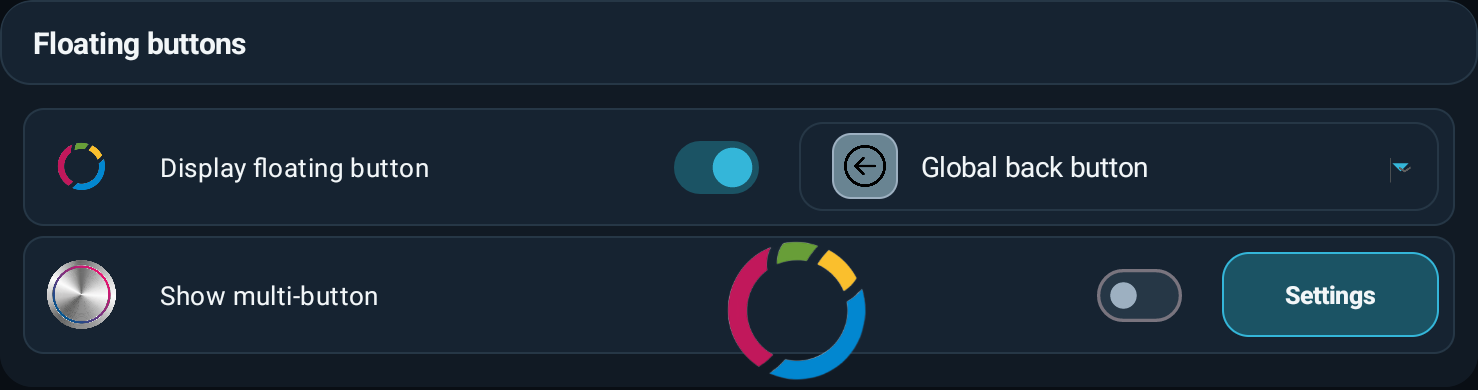
Prefer a visible target? Under “Convenient controls” → “Floating buttons”, select “Global back button” for the floating button and enable its display. Place it where it will not cover directions or important controls.
For a multi-button, open its settings and assign Back to a convenient sector. Other sectors can keep your music controls or app menu. Displaying controls over other apps requires Android's overlay permission.
Our buttons, gestures and voice guide walks through the assignment options. Each one uses the same global Back action — you do not need to reinstall apps.
Option 3. Say “Go back”
In the voice assistant settings, link a phrase such as “Go back” to “Global back button”. Basic mode uses manually configured commands. Advanced mode can use the shared action list; add a manual clarification if you prefer your own wording.
Activate the assistant first, then say the command. Voice activation uses your configured wake phrase; manual mode uses an assistant-activation action. Do not confuse the Back command with the wake phrase.
You can assign the same action to a supported physical vehicle button too. Button remapping availability depends on your vehicle and profile.
The Russian word in the first field is just this user's custom wake phrase. It is not required: choose your own phrase, such as “Hey, car”. The Back command is configured separately.
1. Wake phrase — how to call the assistant

2. Voice command — what to say after activation

3. Action — what JCarTools should do

Try it in a familiar app
- While parked, open an app and enter its settings.
- Invoke Back once using your chosen control.
- Check that you return to the previous screen.
- Also try dismissing a menu or keyboard: the response may differ.
The action is selected, but nothing happens
Open “App Store” in JCarTools. Find “Enable if the Install button is unclickable” and check the indicator below it. It should say “Special service is running”.

Then check your trigger: is the edge zone enabled, is the button visible, or was the voice command recognised? If Back works in another app, the original app may handle it differently.
Does this replace the missing button on any vehicle?
For Android head units in JAECOO, CHERY, EXEED, EXLANTIX, JETOUR, TENET and SOUEAST vehicles, check the available actions and permissions in your own profile first. System windows and other displays can respond differently on some firmware. Identical behaviour across all vehicles is not guaranteed.
What about CarPlay and Android Auto?
Do not treat this action as a replacement for phone navigation controls. It targets the head unit's Android system; CarPlay and Android Auto interfaces may behave differently.