Your usual setup, without the usual taps
You want your route on the instrument cluster and your music on the centre screen. Add “Show app on instrument cluster”, then select the Yandex Music app itself from the action list, with a 3-second interval. One group launch opens navigation on the cluster, then Yandex Music on the head unit.
For the first step, select your navigation app for instrument-cluster output under “App launch”. For the second, simply select the installed Yandex Music app in the shared action list. No extra configuration is needed: it launches on the head unit. You do not need the “Show app on head unit” action or its separate app selection for this step. Both apps must be installed in the car, and your vehicle and profile must support instrument-cluster output.
Not just apps. The group uses the shared JCarTools action list, including display controls, media and supported vehicle commands. Choose what you actually use. This section currently stores one shared sequence, not several separately named routines.
1. Build your sequence
- Open “App launch”.
- Find “Automatically run task group” and tap “Settings” beside it. Leave the switch off for now.
- Tap the add-command button and replace the unassigned action with the one you need.
- Add the other actions in order. The list runs from top to bottom; new rows go at the end.
- Set the interval and tap the save button.

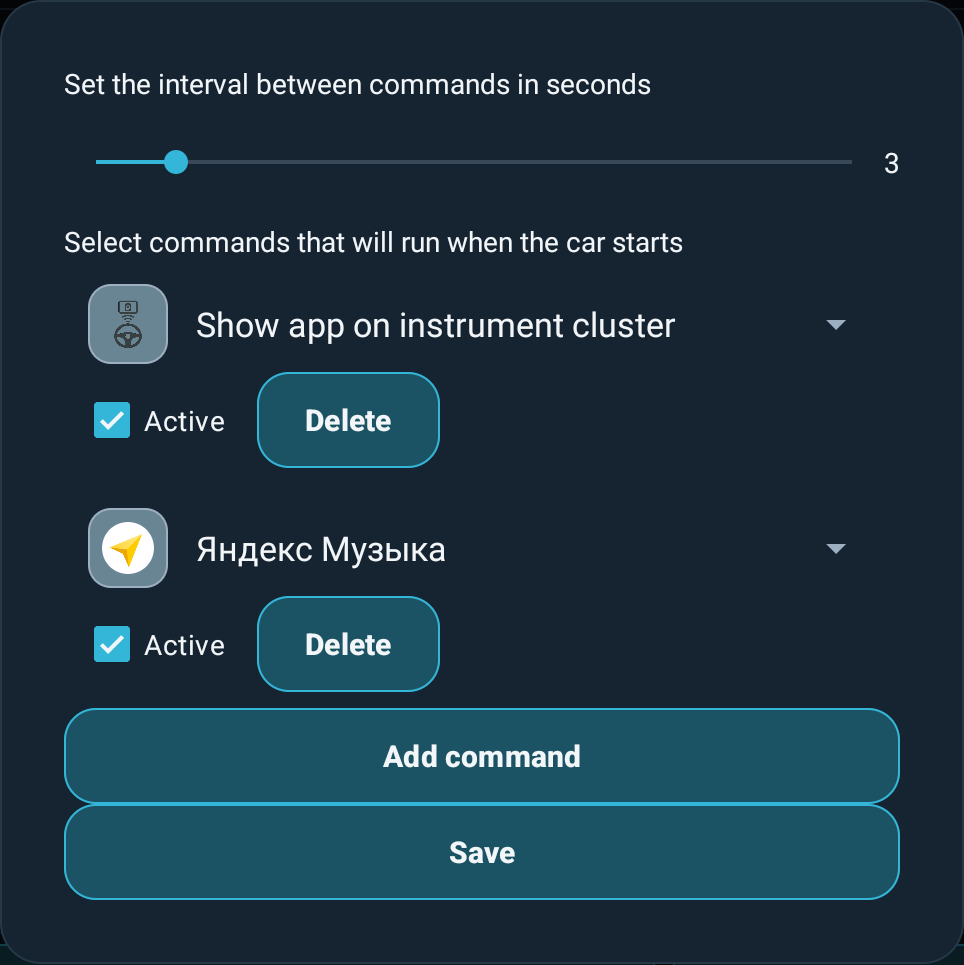
To correct the order, delete the unwanted row and add the steps again in the right sequence. Start with two actions so that each result is easy to check.
2. Give apps time to open
There is one interval for the whole group, from 1 to 20 seconds, rather than a separate delay for each row. Try 3 seconds first, then increase it if the next action arrives while navigation is still loading.
A delay is not a readiness check. The group does not wait for a map to finish loading or for internet access to appear. Test dependent actions individually and allow enough time on your own head unit.
3. Run automatically when the car starts
Once you have tested the sequence, enable “Automatically run task group”. JCarTools will invoke it when it receives the supported vehicle-start event.
This suits tasks you want on almost every drive. JCarTools itself must start and remain running on the head unit. Avoid duplicating navigation and music launch with separate startup settings. In this example, leave “Automatically launch the app on the head unit when the car starts” off: the second group step opens Yandex Music there.
4. Or call the group with one gesture
Prefer to choose the moment yourself? Leave automatic startup off. The shared action list includes “Run task group”, which invokes the saved sequence on demand.
Assign one group-launch action, not every individual step, to a button, gesture or voice command.
Now choose how you want to trigger it. Our buttons, gestures and voice guide shows where to find the settings and assign your action.
A gesture or an edge swipe
Open the relevant gesture or edge-gesture settings under “Convenient controls”. Assign “Run task group” to the direction you want and save it. One swipe can now prepare your screen for the drive.
A floating button or multi-button
Assign the same action to a floating-button press or a multi-button sector. Your sequence stays within reach even while navigation is on screen.
- Open “Convenient controls” → “Floating buttons”.
- Open the action list beside “Display floating button” and select “Run task group”.
- Enable the floating button. Tapping it now invokes the entire saved sequence.


A voice command: “Let's go”
In the voice assistant settings, add a phrase such as “Let's go” and link it to “Run task group”. Basic mode requires manually configured commands. Advanced mode can use the shared action list; add a manual clarification if you prefer your own wording.
“Let's go” is the command, not the assistant's activation phrase. Activate the assistant first, by voice or through an action in manual mode, then say your command. See the voice, buttons and gestures guide for setup. Supported physical buttons can use the same group action too.
Test it while parked
- Invoke the group once using your chosen control.
- Check the order and the result of each step.
- Increase the interval if commands arrive too quickly.
- Decide whether you need automatic startup or just an on-demand control.
Why can I only see the last app?
Sequential launch does not create split screen. Apps opened on the same display may cover one another. Split screen and instrument-cluster output are separate settings and require support from your vehicle.
Does a gesture require automatic startup to be enabled?
No. “Run task group” can call the saved group with the automatic-start switch off.
What if one action does not work?
Test it on its own. Check app selection, permissions and profile support. A longer delay cannot add an unsupported feature. Do not include the group-launch action inside the group itself: that would trigger another invocation instead of a simple sequence.
Which vehicles can use this?
For JAECOO, CHERY, EXEED, EXLANTIX, JETOUR, TENET and SOUEAST owners, the principle is the same: the group combines actions available in your own profile. Use the list in your JCarTools installation rather than assuming every action shown in another vehicle is supported.