Connect your car in JCarTools
A hidden factory Wi-Fi menu does not necessarily mean your car cannot get online. If the head unit supports Wi-Fi and makes it available to the app, JCarTools lets you choose a network without hunting for that hidden menu. It does not add missing Wi-Fi hardware; availability depends on the head unit and its firmware.
You can get internet from an Android phone, an iPhone or a Wi-Fi modem/router with a SIM card. JCarTools Wi-Fi Manager connects the head unit to that network and checks access. It does not replace a data plan or create an internet connection when the phone or router has none.
- Enable mobile data and the hotspot on your phone. On Android, look for “Hotspot” or “Tethering” in Settings. If using a mobile router, wait for it to connect to the cellular network.
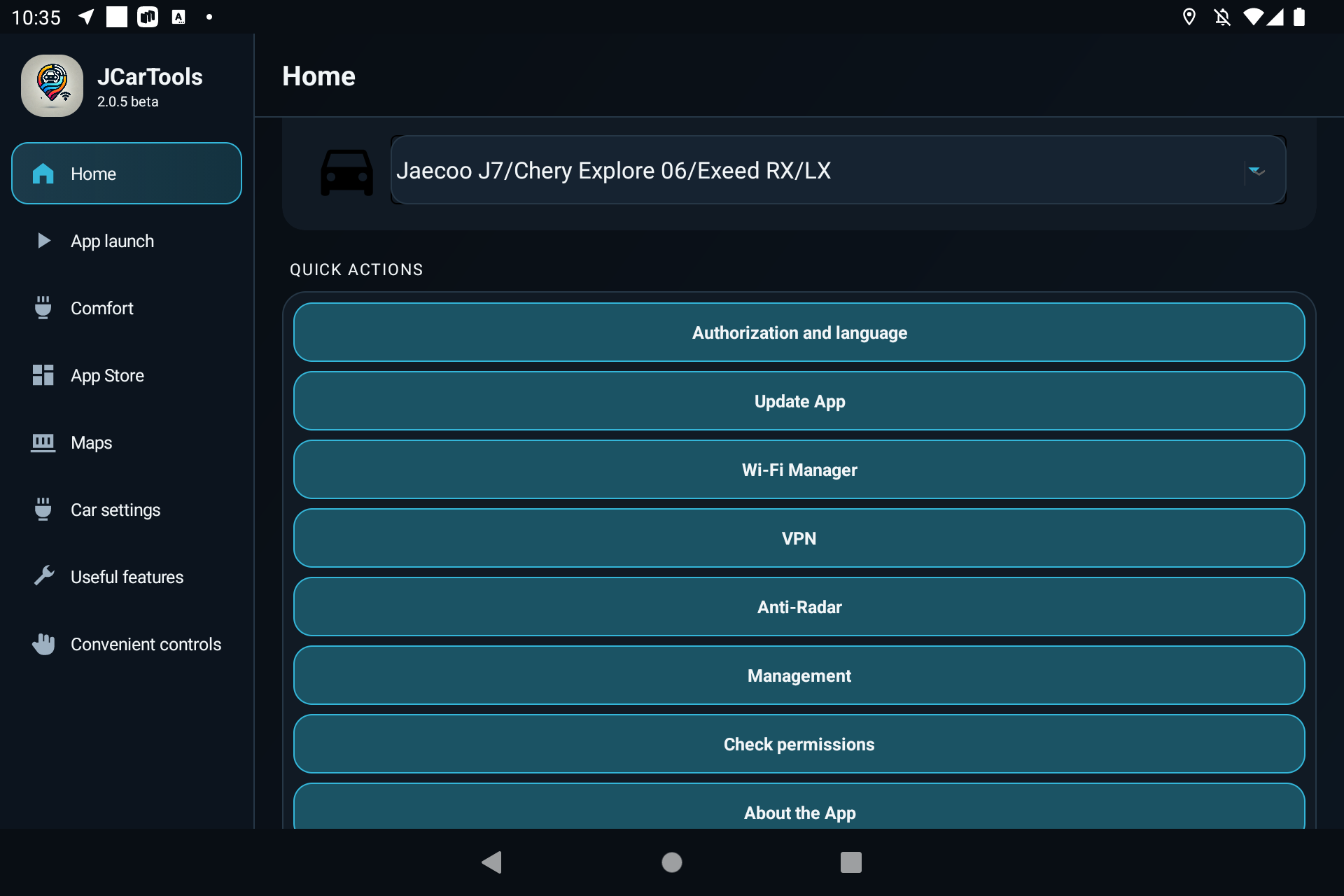
- In JCarTools, open Home → Wi-Fi Manager. Look under Quick Actions; scroll down if needed.
- If Wi-Fi is off, tap Turn on Wi-Fi, then Refresh network list....
- Tap your network, enter its password if requested and confirm. A saved network usually does not require the password again.
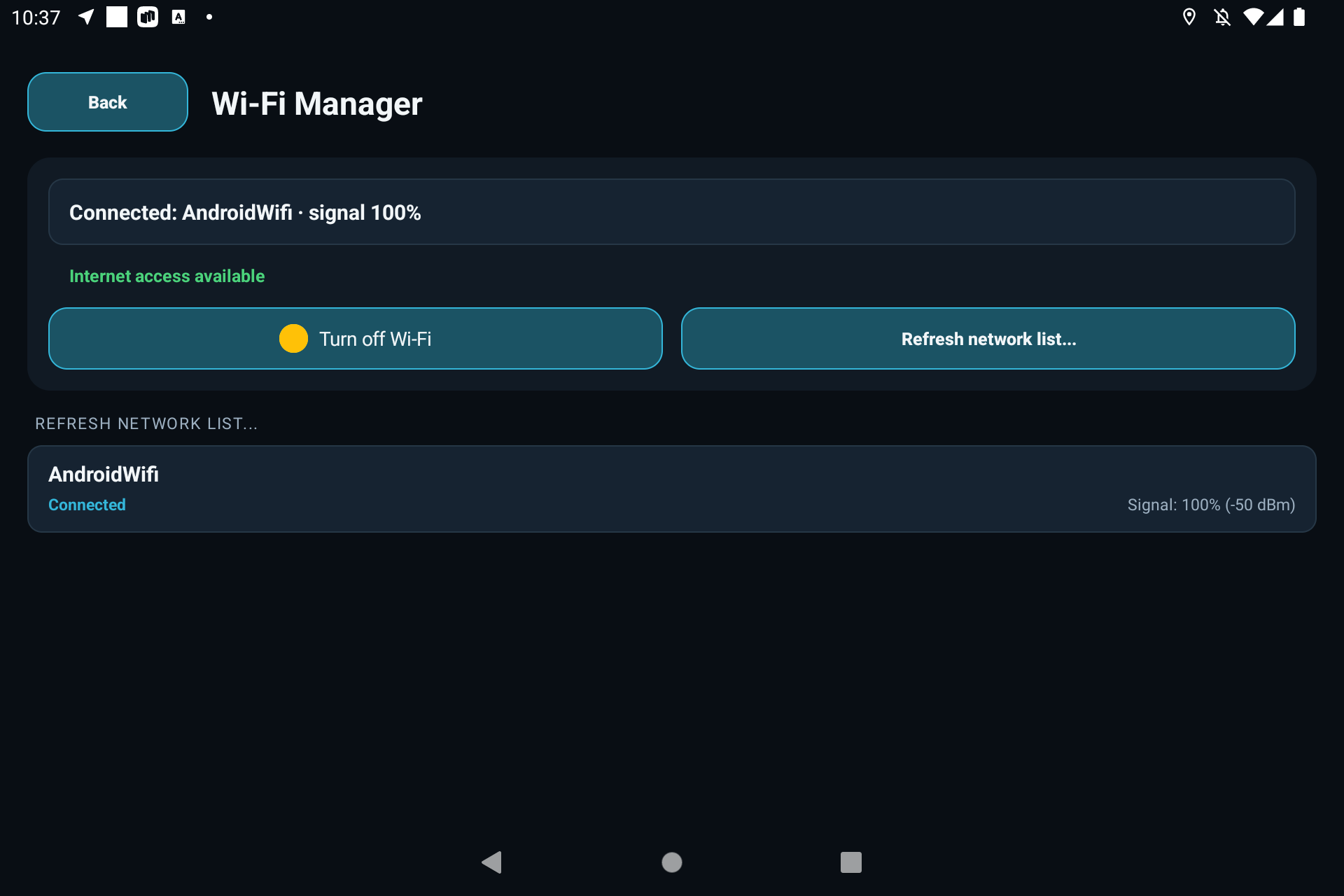
- Wait for the network name to appear next to Connected, then check the internet status underneath.
Keep the hotspot name and password easy to enter
Start with a short, clear network name such as MyCarWiFi. Plain Latin letters and numbers, without emoji or unusual characters, are a practical choice for car infotainment systems.
Make the password easy to type on the car screen too: use Latin letters and numbers, without Cyrillic characters or accidental spaces. Easy to type should not mean 12345678: choose a unique password, preferably at least 12 characters long. iPhone requires at least eight ASCII characters, as explained in Apple's instructions.
If the car cannot see your Android hotspot or router, try the 2.4 GHz band. Some head units do not support the phone's selected 5 GHz band or WPA3-only security. A protected WPA2-Personal network can help with compatibility; there is no need to leave the hotspot open.
Changed the hotspot password? In JCarTools, press and hold the saved network name, confirm that you want to forget it, then select it again and enter the new password. This removes the car's saved connection, not the hotspot itself.
iPhone: when to enable Maximize Compatibility
If other devices can find your iPhone but the car cannot, or it fails to connect, one switch may help.
- On iPhone, open Settings → Personal Hotspot and enable Allow Others to Join.
- Enable Maximize Compatibility if the option is available. On supported iPhones, this uses 2.4 GHz and WPA2 for better compatibility with the head unit.
- Keep this settings screen open until the car connects. Refresh the network list in JCarTools Wi-Fi Manager and select your iPhone.
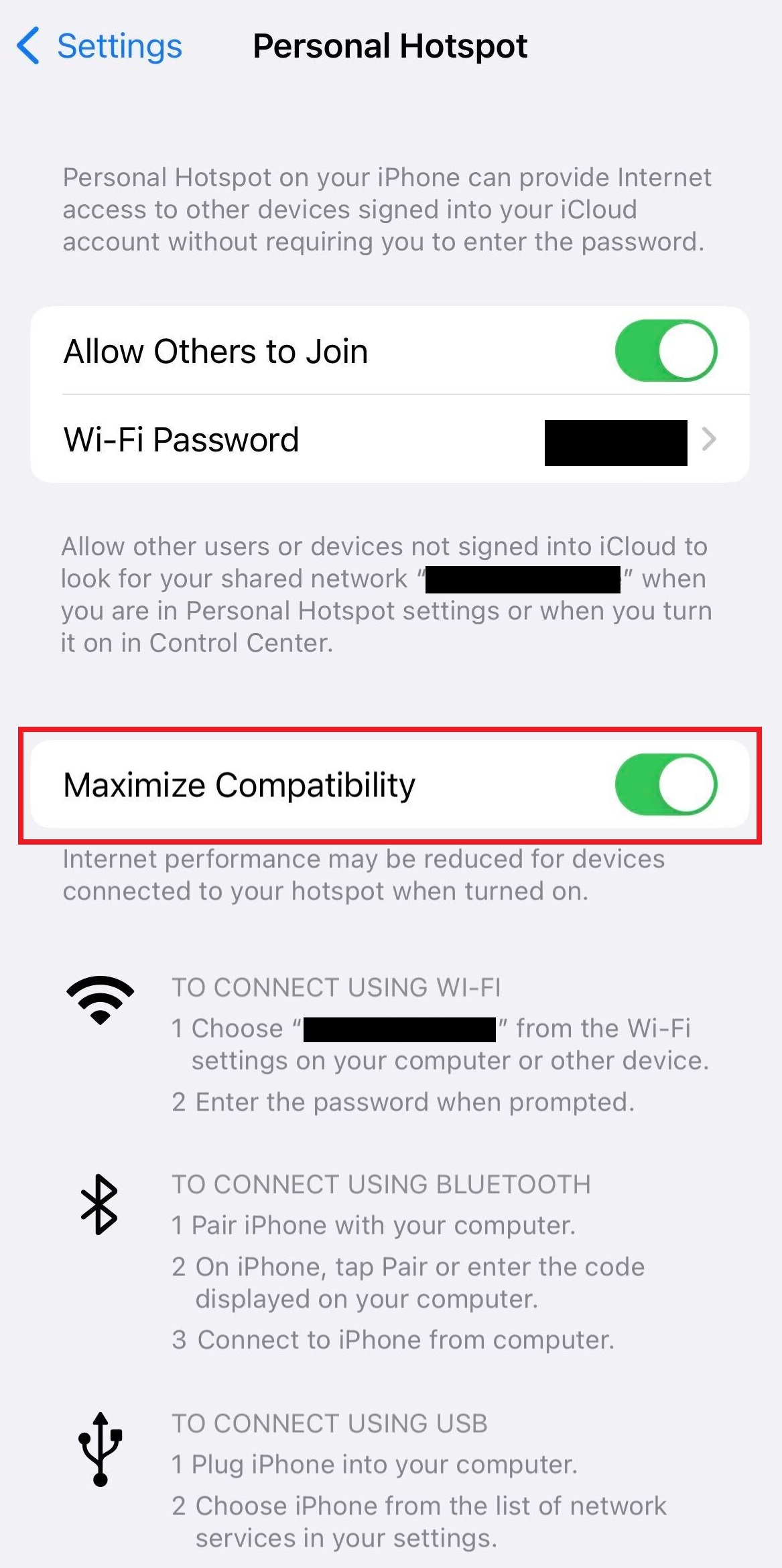
Apple recommends this option for connection problems, but notes that it can reduce speed and Wi-Fi security compared with the standard mode. See Personal Hotspot troubleshooting and Wi-Fi security on Apple devices.
The iPhone's hotspot name is its device name. To simplify it, go to Settings → General → About → Name.
How to tell whether internet access is working
In Wi-Fi Manager: signal strength is not the whole story
“Connected”, even with a 100% signal, only confirms the link to the hotspot. Internet access is checked separately: below it you will see Internet access available or an error message. Allow a few seconds after connecting.
In Authorization and language: check the plug icon
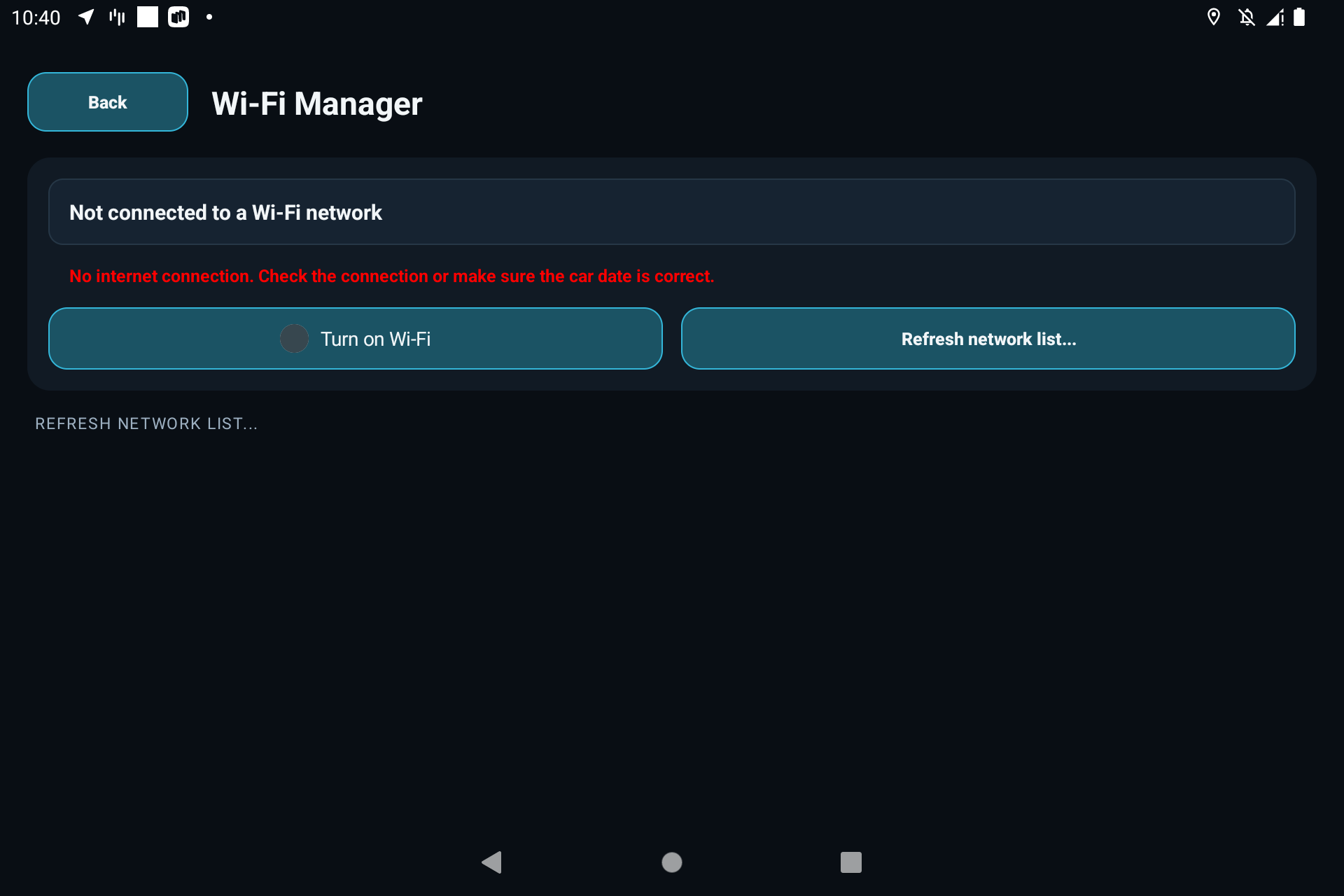
Open Home → Authorization and language. A small plug icon sits to the right of the device ID. A connected plug means JCarTools has reached its server. A disconnected plug flashes, and an internet error message appears below it.
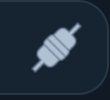
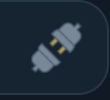

The check is a clue, not a diagnosis. Wi-Fi Manager checks access to a JCarTools server, while the plug indicates the app's connection to its server. A wrong date, network restrictions or a server outage may cause a failed check. A successful check does not guarantee that the carrier allows every other service.
Wi-Fi is connected, but apps do not work: what to check
1. Does the phone or router itself have internet?
Disconnect the phone from your home Wi-Fi and try several websites over mobile data. If they do not open on the phone either, start with cellular reception, remaining data and the data plan—not the JCarTools settings. For a mobile router, test with another device connected to it.
Some plans allow internet on the phone but restrict tethering. Check this with your carrier. Weak cellular reception can also affect the connection even when Wi-Fi signal strength between the phone and the car is excellent.
2. The car's date and time
Check the day, month, year, time and time zone, especially if you recently changed the date while setting up the head unit. An incorrect clock can prevent certificate checks from succeeding: Wi-Fi connects, but secure connections fail. Mozilla's support article explains this issue.
Set the correct date and time in the car's factory settings, or enable automatic time if it works correctly. Then reopen Wi-Fi Manager and Authorization and language. There is no need to disable certificate checks.
3. Android Auto and CarPlay may be using Wi-Fi
Connected your phone to Android Auto or CarPlay, and now the car will not connect to your hotspot? On some firmware versions, these modes conflict: you can use either Android Auto / CarPlay or the head unit's Wi-Fi internet connection, but not both at once. This mainly concerns wireless connections, which also use Wi-Fi, as described in the Android Auto and CarPlay setup instructions.
To check, disconnect Android Auto or CarPlay in the car's factory menu, disable its automatic connection if necessary, then select your network again in JCarTools Wi-Fi Manager. Simply leaving its screen may not end the connection. If internet access returns after disconnecting, you may need to choose one mode at a time on that firmware. You can try a wired connection if your car and phone support it, but this does not guarantee simultaneous operation. This depends on the head unit's firmware, not a restriction imposed by JCarTools Wi-Fi Manager.
Turn off wireless Android Auto: where to tap
If Android Auto keeps reconnecting and using Wi-Fi, you can turn off its wireless mode. Do this on your phone, inside Android Auto settings—not in JCarTools or Android's system-wide Developer options.
- Search your phone's Settings for Android Auto. If this opens the app information page, choose Additional settings in the app.
- Scroll to Version and tap it to expand the version and permission details.
- Tap the expanded section 10 times and confirm the prompt to enable developer settings.
- At the top of Android Auto settings, open ⋮ → Developer settings.
- Find Wireless Android Auto and clear its checkbox or turn off its switch.
- End any active Android Auto connection in the car. Then enable your phone's hotspot and connect to it through JCarTools Wi-Fi Manager.
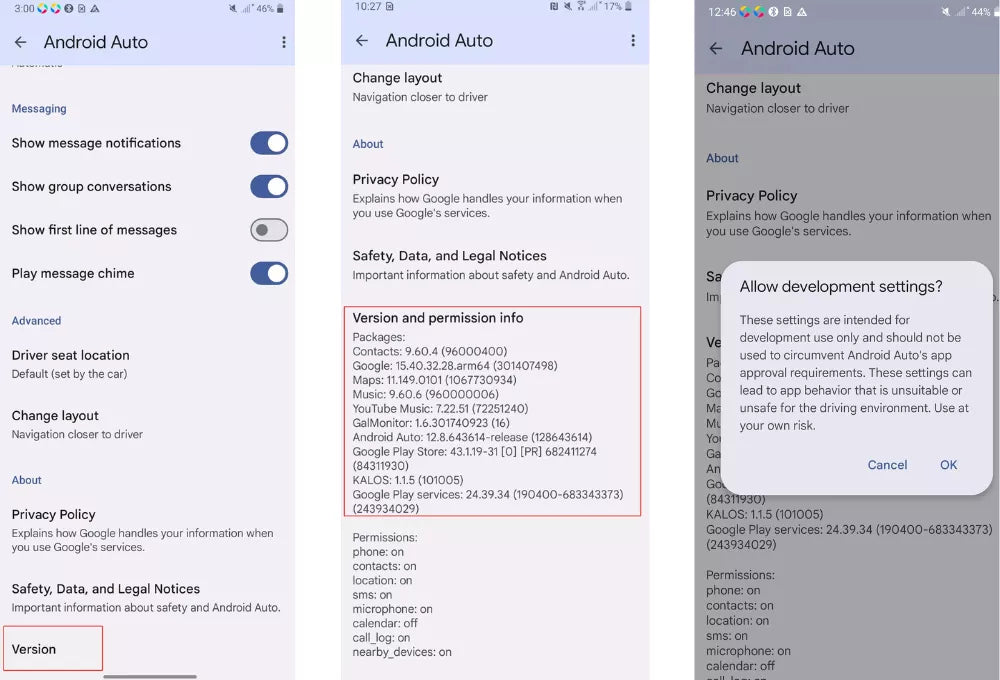
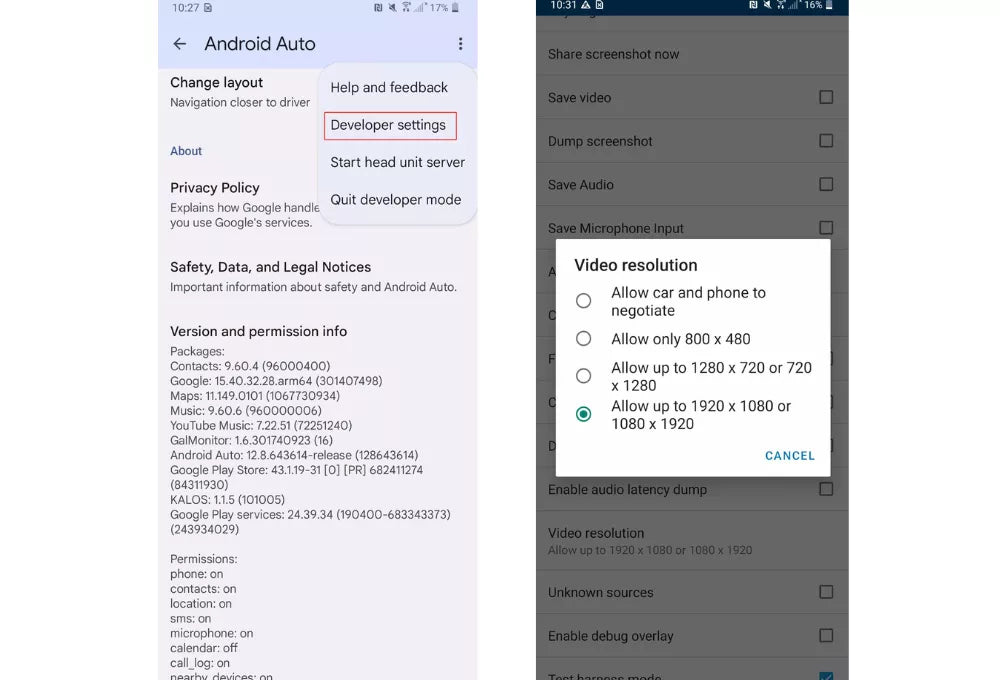
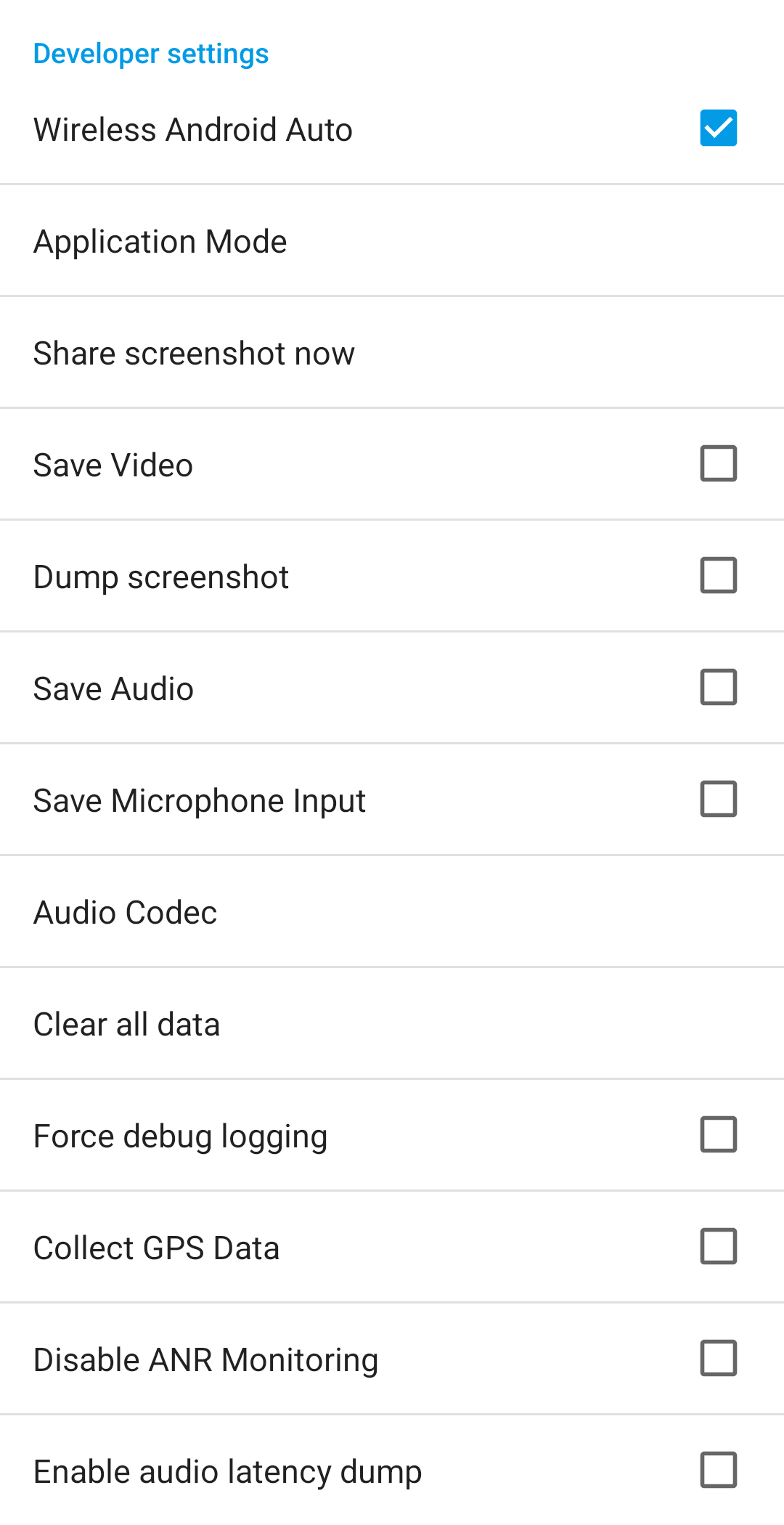
To restore wireless Android Auto, turn the same setting back on. Wired mode remains a separate option if supported. If the setting is missing, its location or availability may have changed in your Android Auto version; use the car's factory menu to disable wireless projection if that option is available. Leave the other developer settings unchanged.
The menu activation steps are documented by Google; turning off Wireless Android Auto is described in a first-hand Android Auto community report. Menu labels may vary. These steps apply to Android Auto only, not CarPlay.
Router and head unit: conflicting subnets
Internet works with your phone but not with your mobile router? One possible cause is an overlap between the router's network and an internal vehicle network. Addresses such as 192.168.0.1, 192.168.1.1 or 192.168.8.1 and their subnets may already be in use. These are possible examples, not fixed addresses for every JAECOO head unit: settings depend on the device and firmware.
If you find a conflict, move the router to a different subnet. For example, you can use the local address 192.168.100.1 with a 255.255.255.0 subnet mask, provided the 192.168.100.x network is not already in use elsewhere. Choose an unused subnet rather than just changing the last number of the address.
The Wi-Fi network name may still be visible. IP addressing affects communication after the radio network is discovered. If the hotspot does not appear at all, check that it is enabled and try 2.4 GHz first.
- Connect a phone or computer to the router and open its settings using the manufacturer's instructions.
- Find LAN / Local network / Router IP address. Change the router's local address—not the carrier APN or the car's own address.
- Set an unused address, for example 192.168.100.1, with a 255.255.255.0 subnet mask. DHCP must assign addresses from the same subnet, for example 192.168.100.100–192.168.100.200. Many routers adjust this automatically; check yours.
- Save the settings. The router connection will briefly drop; reconnect after it restarts. Its administration page is now at the new address.
- Reconnect the car to the network in JCarTools and wait for the internet check.
This is an example for an address conflict, not a required change for every car. If the connection already works, leave the address alone. TP-Link's LAN and DHCP instructions illustrate the process; your router's menu labels may differ.
A quick checklist
- No network in the list: enable the hotspot, refresh the list in JCarTools, try a simple name and 2.4 GHz. On iPhone, try Maximize Compatibility.
- Password rejected: check capitalization and spaces. If the password changed, forget the saved network and reconnect.
- Connected, but no internet: check the source's mobile data and tethering restrictions, then the car's date.
- Wi-Fi drops when Android Auto or CarPlay starts: disconnect that mode and reconnect through JCarTools. Some firmware versions only allow one mode at a time.
- Works with a phone, not with the router: check the router's plan and look for a subnet conflict. If confirmed, choose an unused subnet for the router—for example 192.168.100.x, provided it is available.
- Other services work, but the plug is disconnected: compare with another network. If it persists, contact the JCarTools community; access to the app's server may be the problem.
Once connected, get back to navigation, music and your apps. JCarTools Wi-Fi Manager stays within reach, so next time you will not have to guess whether the car connected to your phone.
Need a hand? Contact the JCarTools English Telegram community. Include your vehicle model, firmware, JCarTools version, internet source and the check result. Hide Wi-Fi passwords, device IDs and account details in screenshots.
Related guides: first-time JCarTools setup · GPS from a phone or external receiver · buttons, gestures and voice commands.