There are two separate steps: install the keyboard on the head unit, then set it as the default. Installing it alone may leave the factory keyboard active.
1. Install an app store through JCTStore
On the head unit, open App Store → JCTStore. Connect the car to the internet, for example through your phone's hotspot. See the Wi-Fi guide if you need help getting online.
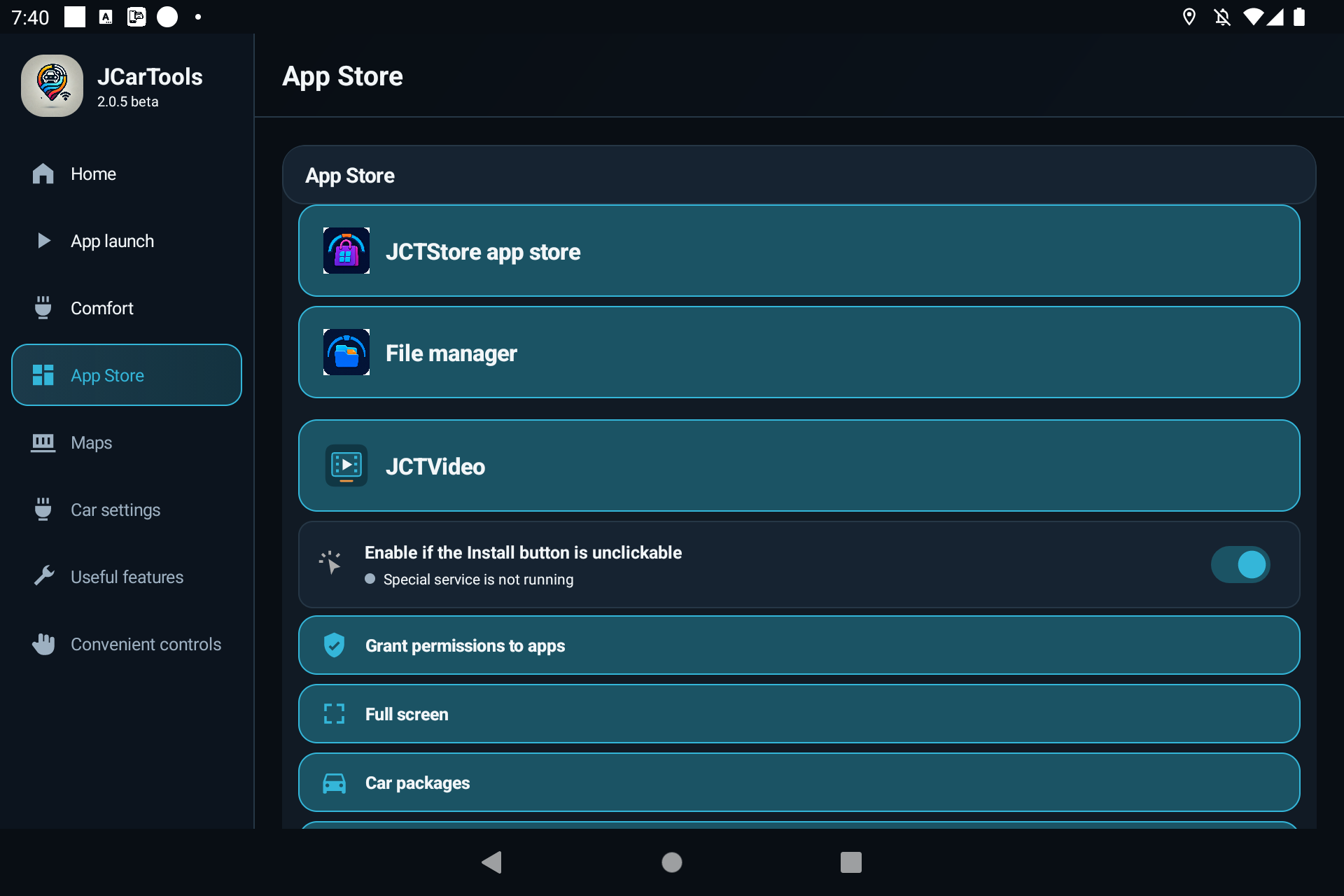
The catalogue includes Aurora Store, RuStore and Aptoide. Install one of them; you do not need all three. If a suitable store is already installed, tap Open.
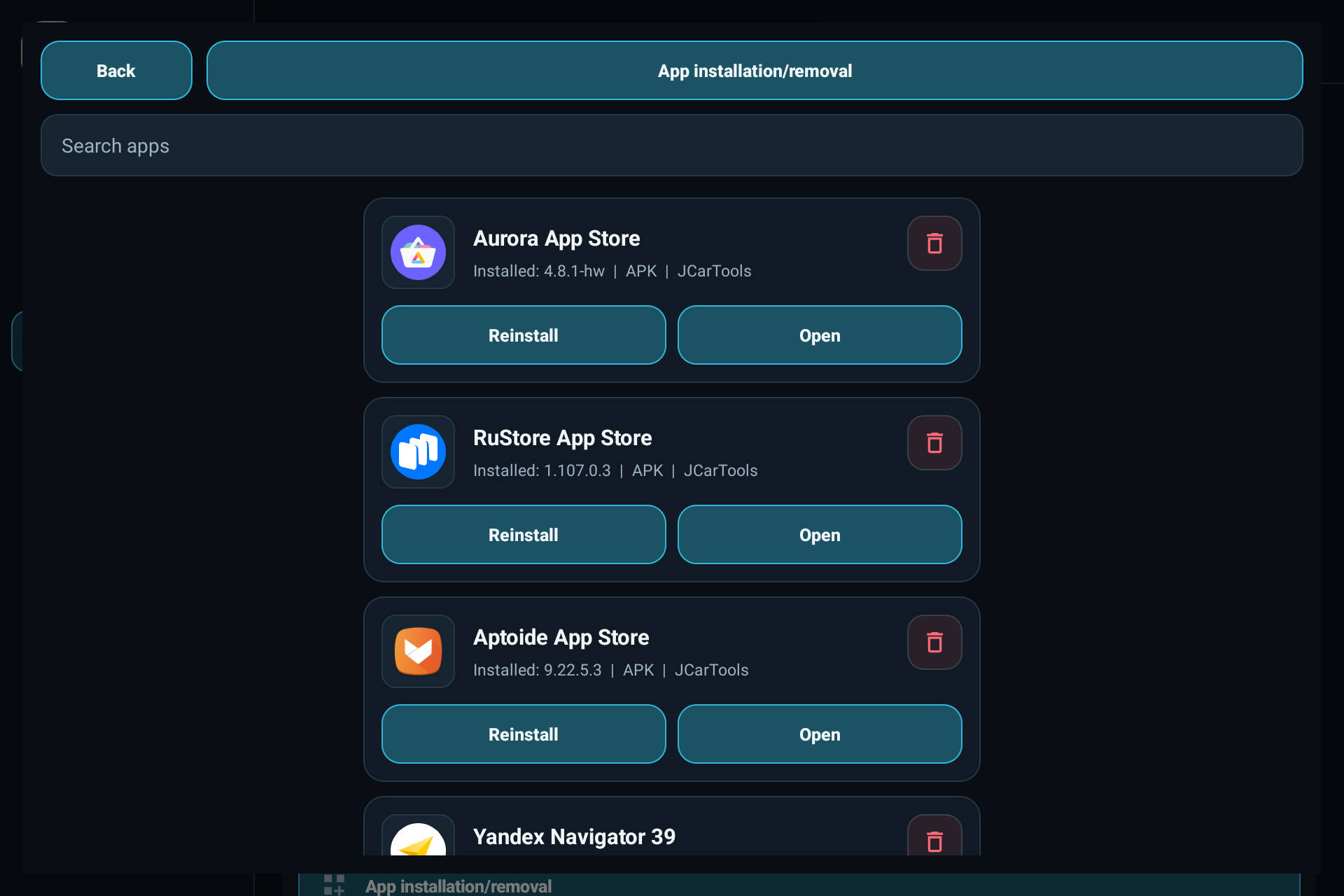
2. Find Gboard or Yandex Keyboard
Open your chosen store and search for Gboard — the Google Keyboard or Yandex Keyboard. Download it and wait for installation to finish. Availability varies between stores; try another of the available stores if you cannot find the keyboard you want.
The keyboard must be installed on the head unit. Installing it on your phone does not change the car's input method.
3. Set it as the default on the JCarTools website
Now make the installed keyboard the default using JCarTools ADB Control, the website's Android management tool.
- Prepare the head-unit connection using the instructions for your vehicle.
- Open the tool on your computer in Google Chrome. Click Connect device and select the head unit. Opening the page alone does not connect it to the car.
- Open Utilities in the sidebar and scroll to Quick Android Command.
- Under Command preset, select Select Yandex Keyboard or Select Google Keyboard, matching the keyboard you installed.
- Click Run and check the Operation result panel.
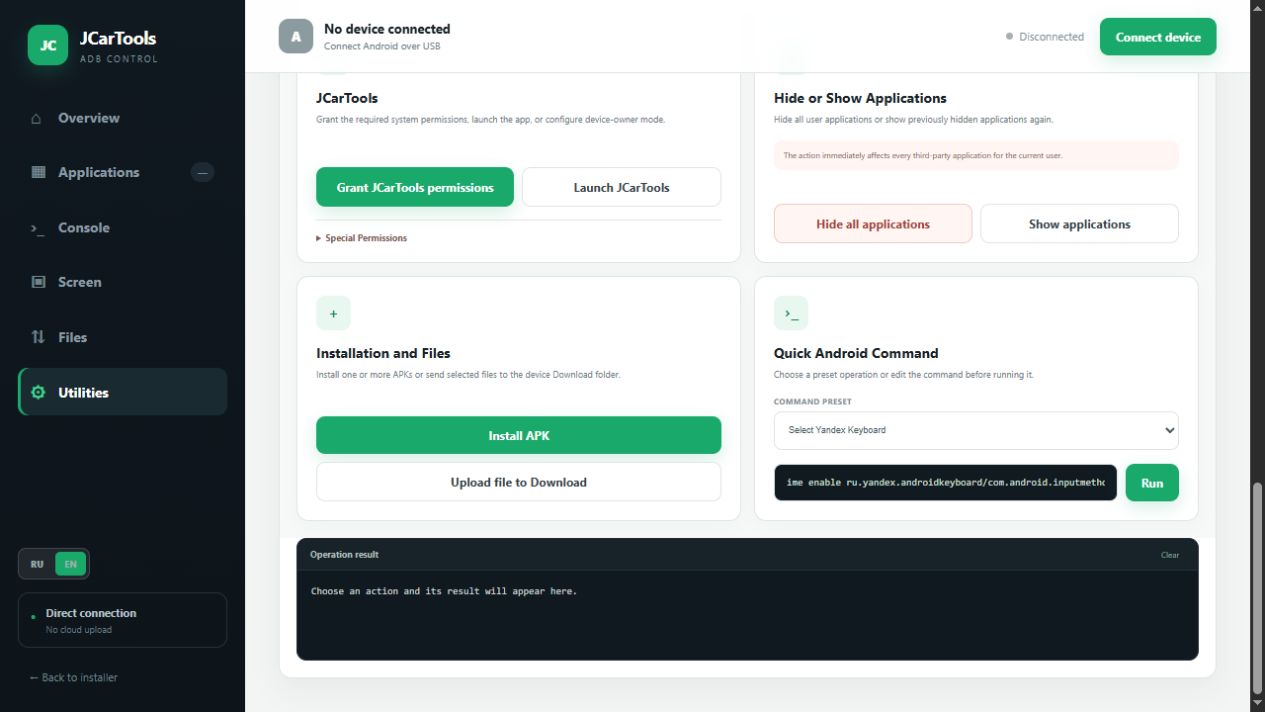
Then choose one option to match the keyboard you installed:
Yandex Keyboard
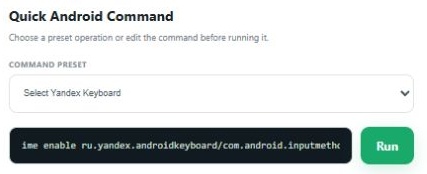
Choose Select Yandex Keyboard, then click Run.
Gboard — Google Keyboard
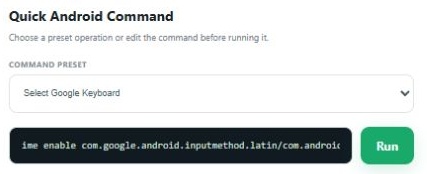
Choose Select Google Keyboard, then click Run.
The command is filled in automatically; you do not need to type it. Run only the option for your chosen keyboard, not both in succession.
The operation enables the chosen input method and makes it the default. It does not download the keyboard, so installation must come first. You do not need to uninstall the factory keyboard.
4. Check typing in an app
Return to the car's screen. Open search in a navigation, music or store app and tap the text field. Your chosen keyboard should appear. Try entering an address or a song title.
In the keyboard's own settings, add the languages you use and adjust the key size if the option is available. Choose what feels comfortable on your car's display.
If the factory keyboard still appears
I installed the keyboard, but nothing changed
Installing it and setting the default are separate operations. Run the matching preset in the website's Utilities section, then close and reopen the app you are using to test typing.
The command returned an error
Check that the website is connected to the head unit, that the keyboard is installed on the car and that the preset matches it. Save the result text. If the error persists, send it to JCarTools on Telegram with your car model and firmware version.
Does this apply to my car?
This guide concerns Android head-unit keyboards. For JAECOO, CHERY, EXEED, JETOUR and TENET, first check connection instructions and compatibility for your exact model. Sharing a brand name does not mean two cars have the same firmware or support the same command.