Before the dealer visit: decide what to hide
The usual routine is simple: choose a mode ahead of time, hide your apps before handing over the car, then restore them after servicing and carry on with your usual setup. Try the restore method beforehand so you do not have to figure it out at the dealership.
Hiding removes apps from the menu, not from the system. It does not guarantee that they will be undetectable during diagnostics.
| Method | What is hidden | How to restore it |
|---|---|---|
| Website | Installed third-party apps, including JCarTools | The website’s Show button |
| JCarTools with special privileges | All installed third-party apps and JCT shortcuts | Repeated taps on the transparent area, or Show on the website if you lose it |
| JCarTools without special privileges | Only JCT shortcuts; other apps stay visible | Repeated taps on the same area, or Show on the website |
If you only want to remove the JCarTools icons from the menu, you do not need to grant special privileges. To hide other installed apps too, use the website or the in-app mode with special privileges.
Hiding is not uninstalling. You will not need to reinstall your apps. However, the website method and the special-privileges mode do more than remove icons: hidden apps become unavailable until restored. Do not expect a hidden navigation or music app to keep working.
1. Through the website: hide and show
This is useful when your car is already connected to the JCarTools installer. JCarTools itself does not need special privileges for this method; the head unit needs to be connected through the website.
- Prepare the connection using the installation instructions for your vehicle. Make changes while parked.
- Open the JCarTools installer in Chrome, press Connect and connect your head unit.
- Expand For advanced users only and find Hidden Applications.
- Press the hide button, currently labelled Hidde, and wait for the operation to finish. Installed third-party apps, including JCarTools, will be disabled and disappear from the menu.
- To bring them back, connect to the same installer and press Show.

There is no need to install the app bundle again. Note that Show enables disabled third-party apps, including any that may have been disabled previously.
Where to find hiding in JCarTools
Open App Store → Hide apps. Scroll down if the button is not visible. This method does not require a connection to the website.
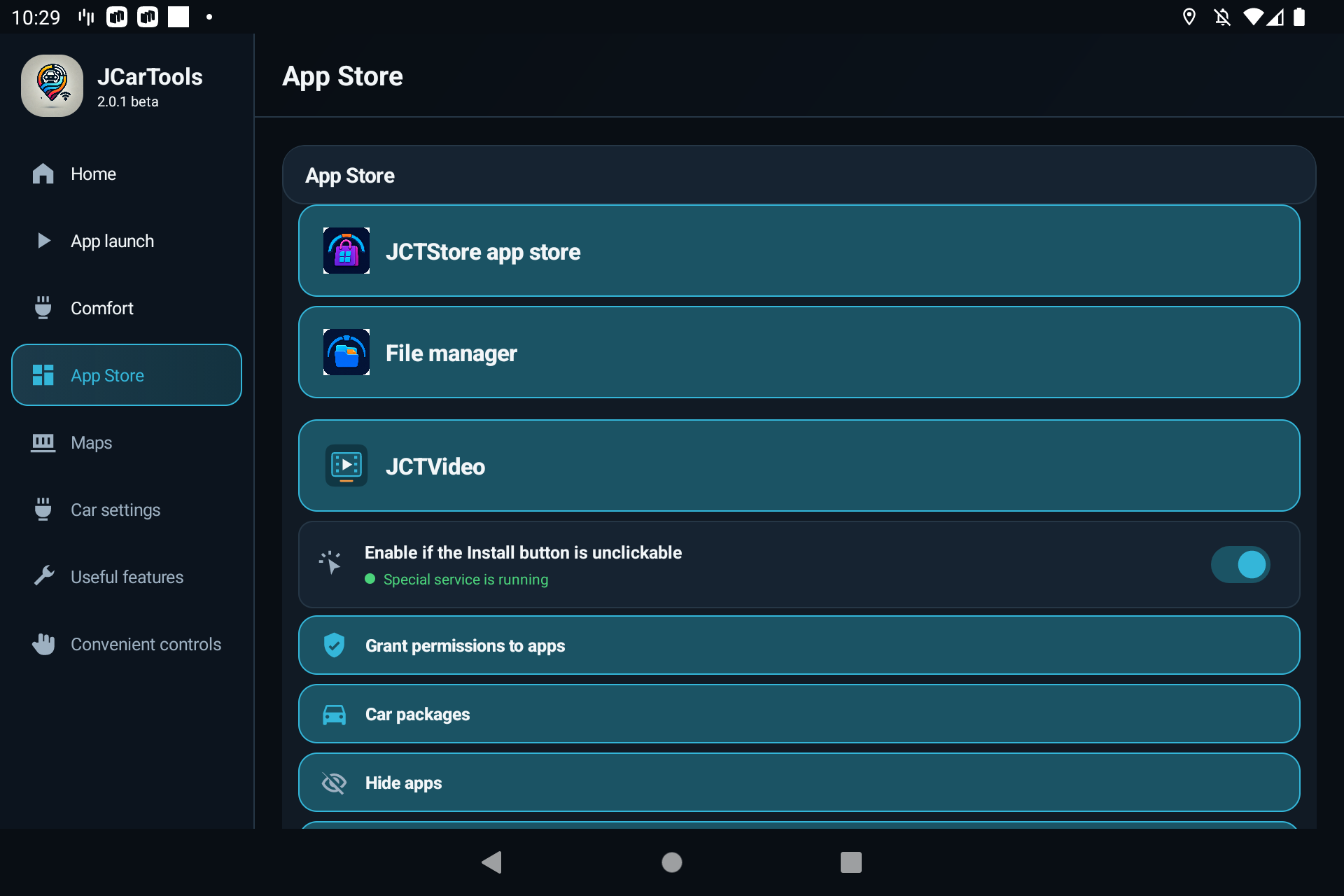
The status at the top tells you whether special privileges are available and what will be hidden. The next two options are not separate switches: JCarTools chooses the available mode based on its privileges.
2. With special privileges: other apps are hidden too
If the status says Special privileges granted, JCarTools will hide all installed third-party apps and its own shortcuts. This means added apps, not every built-in vehicle app or service.
For example, your installed navigation app, music player and JCT shortcuts will disappear from the menu temporarily. After restoring them, you can use them again without reinstalling.
If this is what you need but privileges are not granted yet, read the special permissions guide first. Granting access is a separate step; the Hide button does not do it for you.
3. Without special privileges: only JCarTools shortcuts
If the status says Special privileges missing, only JCT shortcuts will disappear from the menu. Other installed apps will stay visible. This is expected behaviour, not an error.
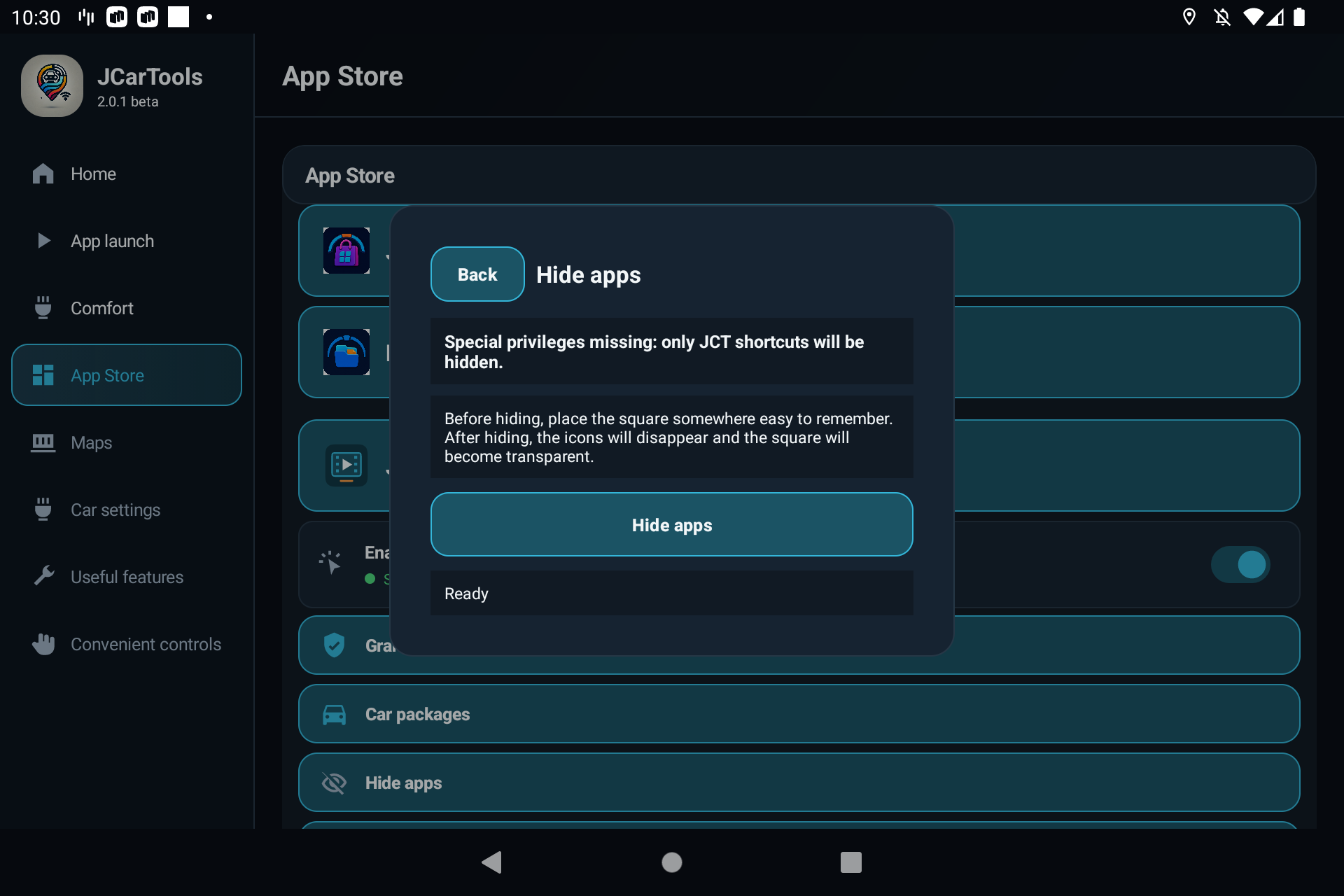
Remember the square’s position before hiding
Both in-app modes use the same way back: a small area over the screen. Before hiding, place it somewhere you can easily remember.
- Find the small square and drag it to a convenient position, such as a free space near the screen edge where it does not cover important controls.
- Remember its position. The square becomes transparent after hiding. You can take a photo of its position for your own reference.
- Press Hide apps. The status line determines what will be hidden: with special privileges, this also includes third-party apps.
- Read the confirmation and press Hide only when you know where to tap to restore everything.
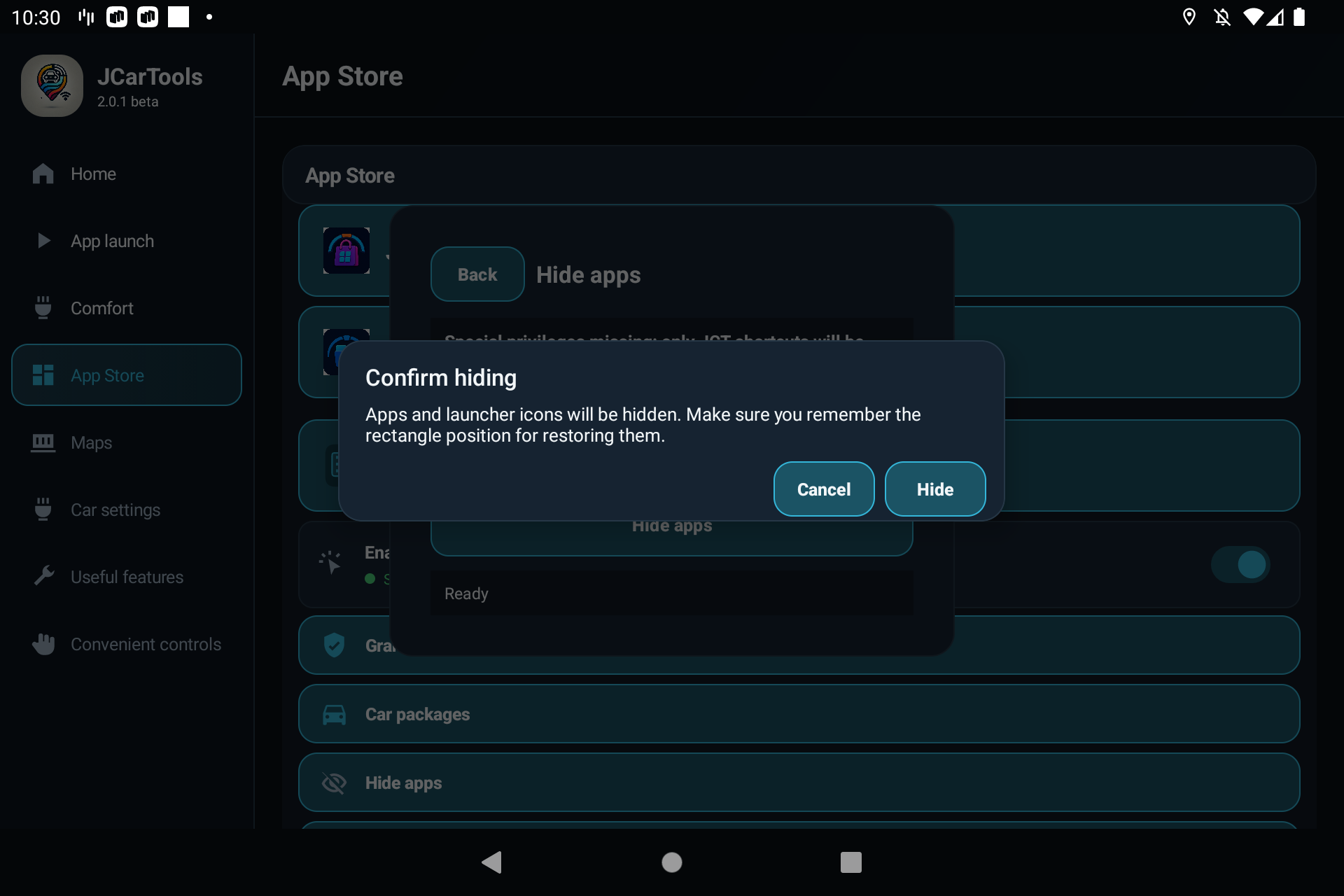
Cannot see the square? Close and reopen Hide apps. Do not confirm hiding until you have found the restore area and remembered its position.
After servicing: bring apps and shortcuts back
Used the website? Press Show in the same installer block.
Used JCarTools? Tap the spot where the square was 14 times in a row, without long pauses. Use short taps, not a long press. Wait for restoration to finish, then check the app menu.
If you have already managed to open the hiding settings, you can also use Restore apps. With special privileges, it restores the apps hidden by this mode as well as JCT shortcuts.
Used the app and lost the square? Restore through the website
The website’s Show button also works after hiding apps inside JCarTools. If the shortcuts are gone and you cannot find the transparent area, you do not need to reinstall the app.
- Connect your head unit to the JCarTools installer using Connect, as described above.
- Open For advanced users only → Hidden Applications.
- Press Show and wait for the operation to finish. Hidden apps and shortcuts will return, including JCarTools.
- Check the head unit’s app menu and open JCarTools as usual.
If restoration does not finish or reports an error, contact JCarTools on Telegram. Include your vehicle model, app version and the result shown by the website.
If the result is not what you expected
I pressed Hide, but my navigation app is still there. Why?
Check the special-privileges status. Without them, JCarTools hides only its own shortcuts. Hiding other apps requires special privileges or the website method.
Will I need to reinstall my apps afterwards?
No. Hiding does not uninstall apps or clear their data. Show and the restore square are designed to bring back access to apps that are already installed.
Can this hide every app in the car?
No. This guide covers installed third-party apps and JCT shortcuts. It is not a way to hide every built-in head-unit function.