What are special permissions for?
In short, they let JCarTools manage certain Android features that a regular app cannot control. For example:
- Grant permissions to other apps from the “Grant permissions to apps” screen, within the limits Android allows.
- Hide installed apps, rather than just JCT shortcuts. Without special permissions, this feature has a more limited scope.
- Stop running apps through the JCarTools task manager. For example, close an unresponsive app before opening it again.
- Manage supported vehicle packages in a dedicated screen. This is an advanced tool, not an invitation to disable unfamiliar components.
This is an advanced device-management mode, not a required step for every user. If the features you use already work, you do not need to grant special permissions just in case.
Three similar labels, three different jobs. “Grant permissions for JCarTools” on the website grants the app its regular permissions. “Grant special permissions” enables the advanced mode. “Grant permissions to apps” inside JCarTools is a tool for managing permissions for other apps.
Before you start: risks and preparation
This is a more privileged operating mode. By granting special permissions and using the related features, you accept all risks and responsibility for the consequences.
- Work with the vehicle parked. Keep the head unit powered reliably and do not interrupt the connection during the operation.
- Back up any data and settings you need from third-party apps. Uninstalling can remove downloads, offline maps and local data; you may also need to sign in again.
- Before granting special permissions, we recommend removing all installed third-party apps except JCarTools. This means apps you added, not the vehicle’s built-in apps or services.
- Leave JCarTools installed. Make sure you can reinstall the third-party apps you need after completing and checking the setup.
Removing third-party apps is a preparation recommendation. If access cannot be granted afterwards, save the error message and ask for help.
Where to remove third-party apps in JCarTools
Open “App Store” → “App installation/removal”. Scroll down if the last button is not visible.
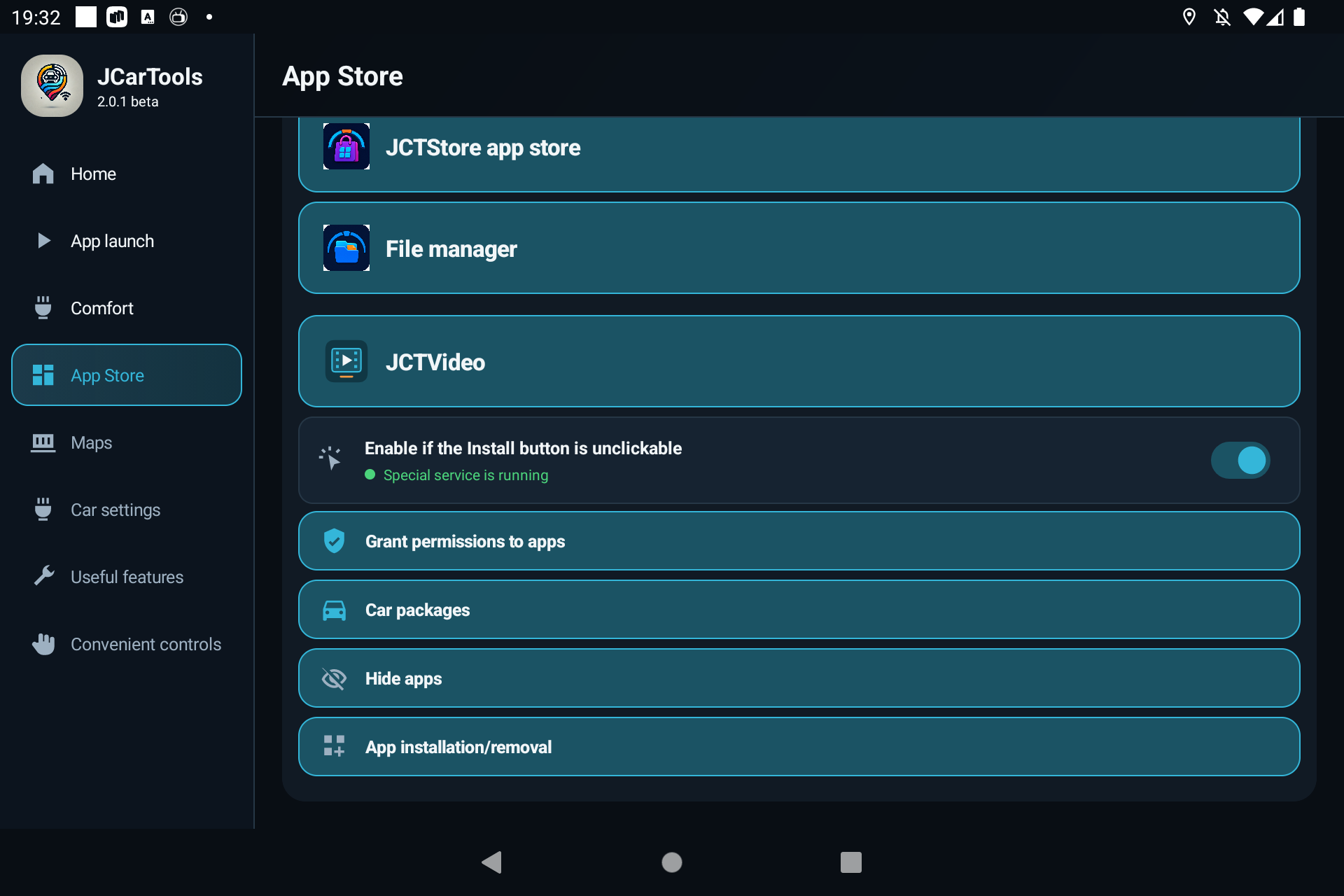
You will see installed non-system apps that have launcher entries. Tap the app you intend to remove, check its name in the confirmation window, then confirm removal. Repeat for the other third-party apps. If you do not recognise an app, check what it does first.
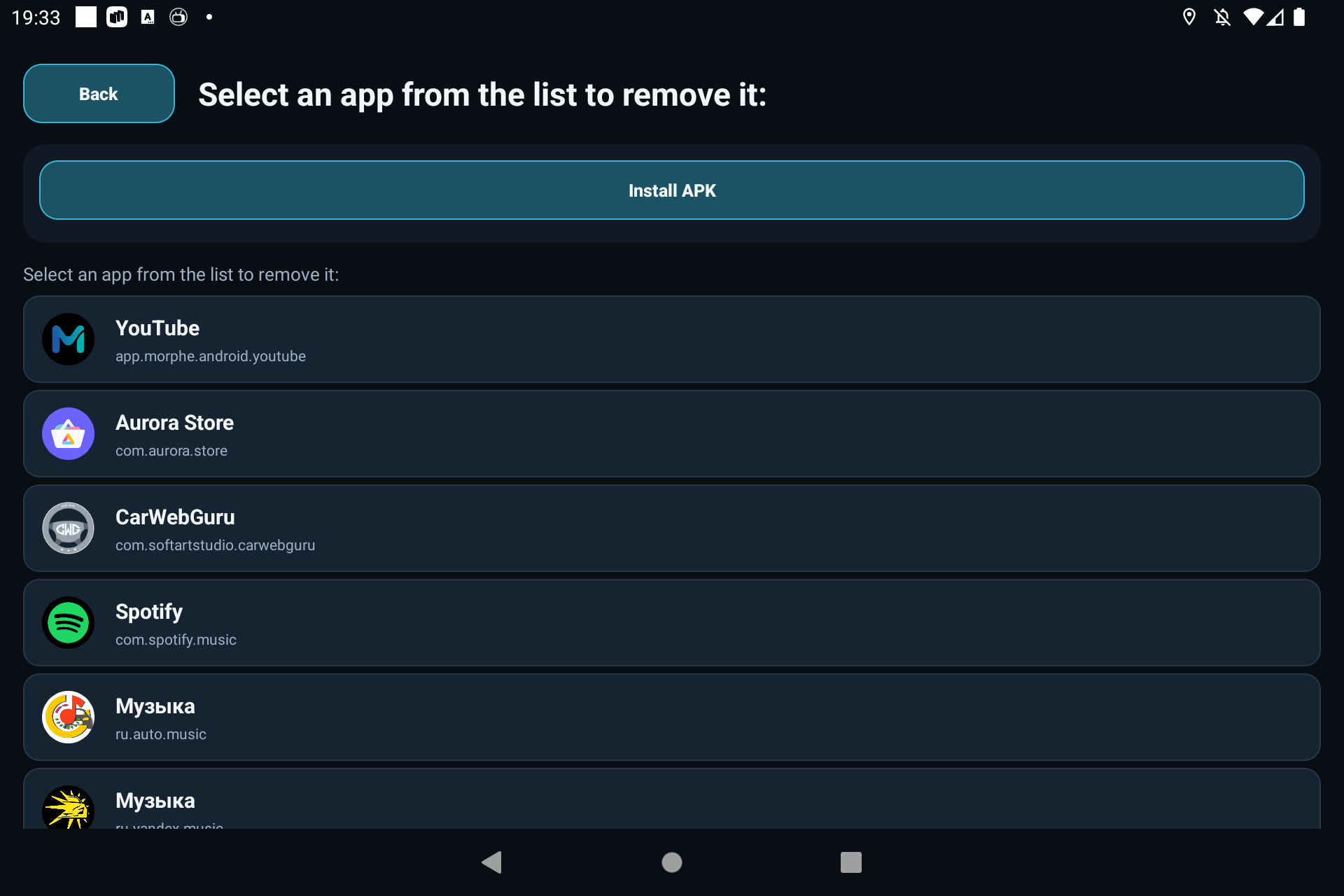
JCarTools is deliberately excluded from this list. Apps without launcher entries may not appear either. If necessary, check those in Android’s built-in Apps settings, leaving system services alone.
Connect to the installation page
- Prepare the connection for your particular model using the JCarTools installation instructions. Use the cable and vehicle port specified there.
- On a computer or compatible Android phone, open the JCarTools installer in Chrome. A phone may need an OTG adapter.
- Press Connect, select your head unit and confirm the connection. If the vehicle displays a USB debugging authorisation request, verify the connecting device before accepting it.
- Once connected, press “For advanced users only”.
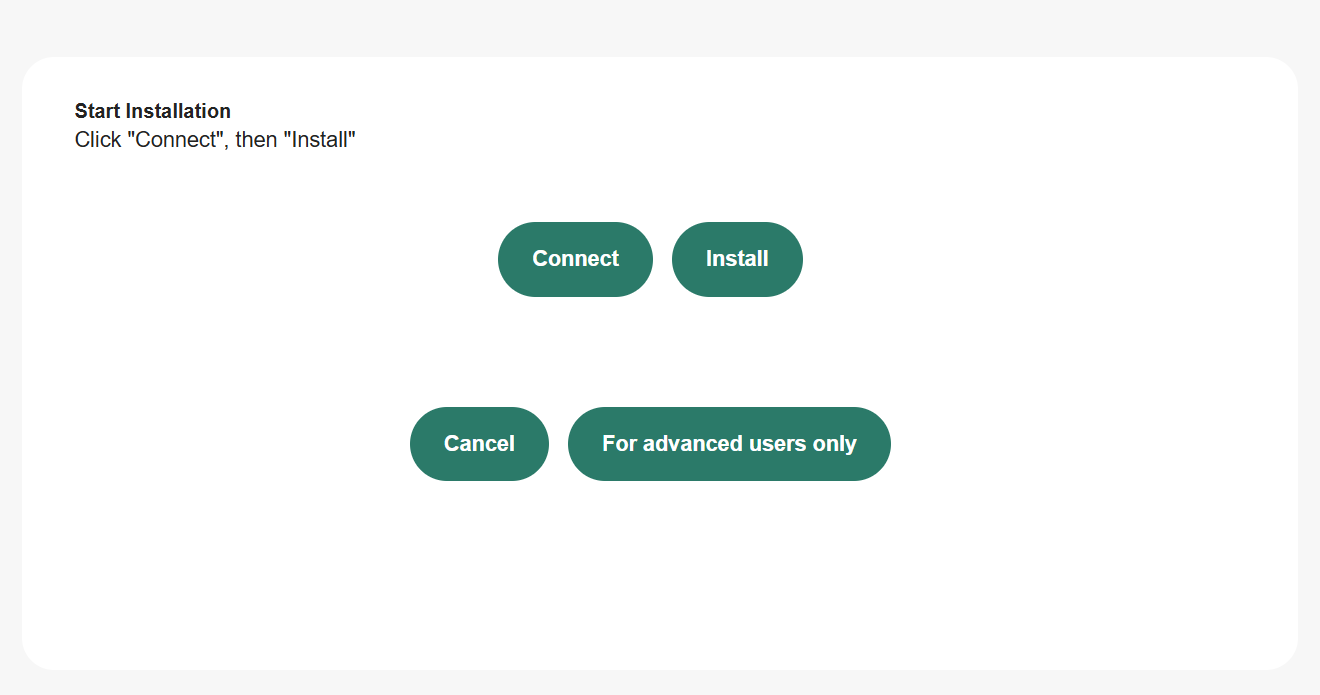
You do not need to reinstall the entire app bundle. If JCarTools is already installed, go straight to the advanced section after connecting. “Install” installs the bundle; it is not the button for granting special permissions.
Grant the special permissions
In the advanced section, find “Grant additional special permissions” and press “Grant special permissions”. The “Grant permissions for JCarTools” button above it performs a different operation and does not replace this step.
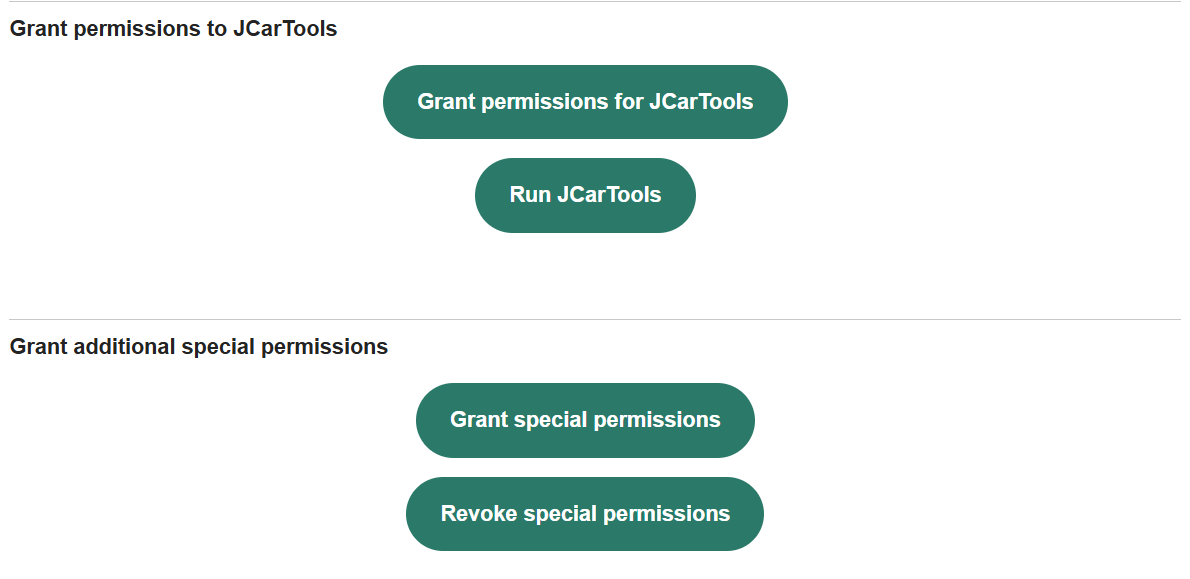
Wait for the result in the output log. Do not press the button repeatedly or unplug the cable while it is running. Once it finishes, check that access has actually been granted.
Check the result and handle errors
Return to JCarTools and open “App Store” → “Car packages”. The status “Special privileges: granted” confirms that access has been granted. You do not need to enable or disable any packages to check this.
If the screen was already open, close and reopen it to refresh the status. Then test only the feature you granted access for. Reinstall your third-party apps after verifying that setup succeeded.
- No device under Connect? Check the cable, port and connection steps in the guide for your vehicle.
- An error appears? Save the exact message or take a screenshot. Do not change unfamiliar settings at random.
- JCarTools still reports no special permissions? Reopen the status screen and read the operation’s result on the website. If the status has not changed, ask for help.
If you need help, visit JCarTools on Telegram. Have your vehicle model, firmware and JCarTools versions ready, along with the error message with personal information removed.
If you no longer need special permissions
First restore hidden apps and undo any package-management changes you made while you still have the required access. Then connect to the same installer and press “Revoke special permissions” in the same section.
Wait for the result and check the status in JCarTools again. If the operation fails, ask for help. Revoking access does not automatically restore removed apps or their data.