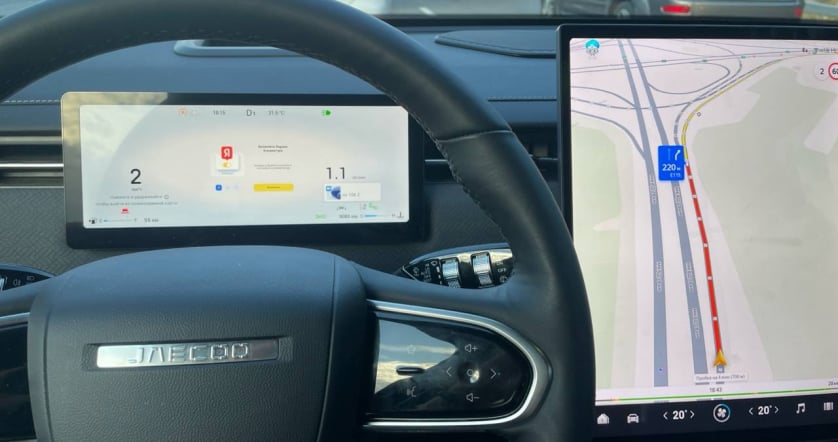
Install JCarTools
Prepare your cable and browser, connect to the car and follow the installation steps.
Find help with installing JCarTools, getting your car online and setting up the apps and controls you use every day.
Prepare your cable and browser, connect to the car and follow the installation steps.
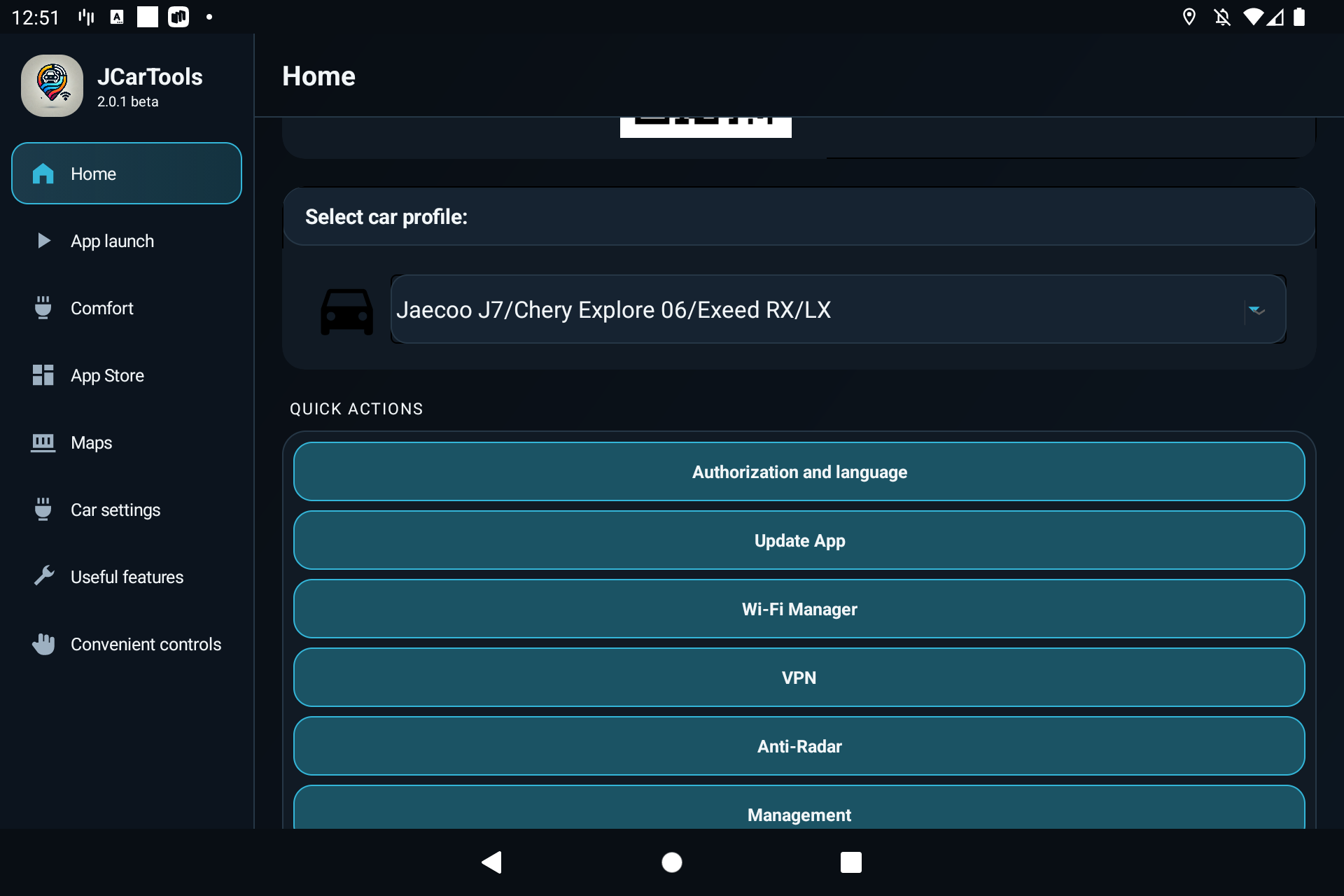
Choose your vehicle profile and configure navigation, widgets and app launch.
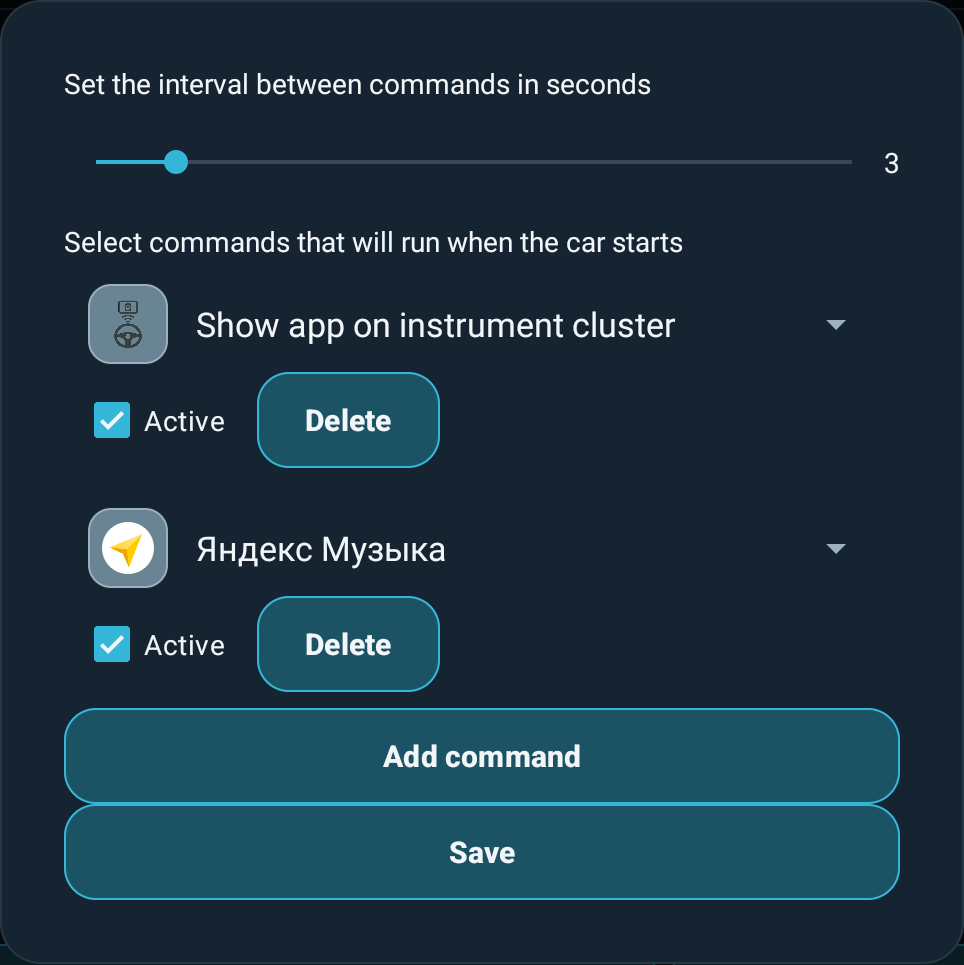
Set up one gesture to launch both apps in sequence.
Open the English installation guide for the required USB cable, browser and vehicle preparation steps. After installation, select your own vehicle profile.
Use Chrome and a USB data cable. Check that USB debugging is enabled using the method for your vehicle and accept the debugging prompt on the car display if it appears. See the connection and installation steps.
Return to JCTStore and enable the switch for when the system Install button does not respond, then try installing the app again. See the JCTStore section of the installation guide.
Some advanced actions, such as closing apps from the task manager, need extra access. The special permissions guide explains what the mode enables and how to set it up.
A Wi-Fi connection and internet access are separate. Check that your hotspot or modem has internet access and check the connection indicator in JCarTools. The Wi-Fi setup guide covers iPhone hotspot settings and address conflicts.
If the head unit has unreliable GPS, JCarTools can receive coordinates from an Android phone, an iPhone or a USB GPS receiver. Follow the GPS setup guide to choose a source and test it.
This depends on the car and head unit. Select the profile for your own vehicle and follow the instrument cluster section of the first-time setup guide if the option is available.
Assign the global Back action to an edge swipe, floating button or voice command. The Back action guide shows how to set it up and check that it works.